This guide explains how to create and send email correspondence to guests who already have confirmed future bookings in your Bookeasy Stay console. This feature allows you to communicate important information, booking updates or property announcements to existing guests without having to contact each guest individually.
By creating a letter and applying the appropriate booking filters, you can automatically send correspondence to guests whose reservations meet your selected criteria.
Important: When sending correspondence to existing bookings, ensure that your letter content and booking filters are correct before proceeding, as the system can automatically distribute the email to all eligible existing bookings.
Creating a New Letter
- Log into your Bookeasy Stay console.
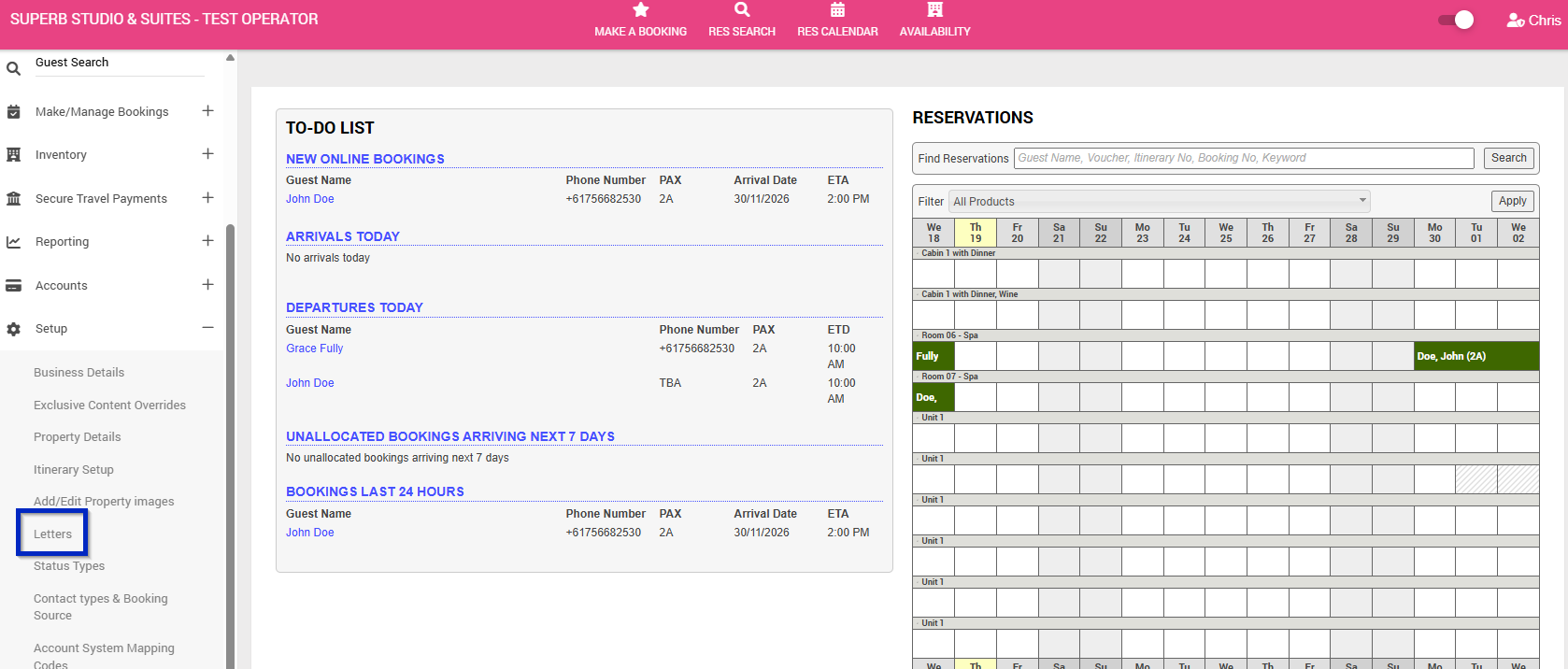
- Click on Letters under Setup in the Left Hand Menu.
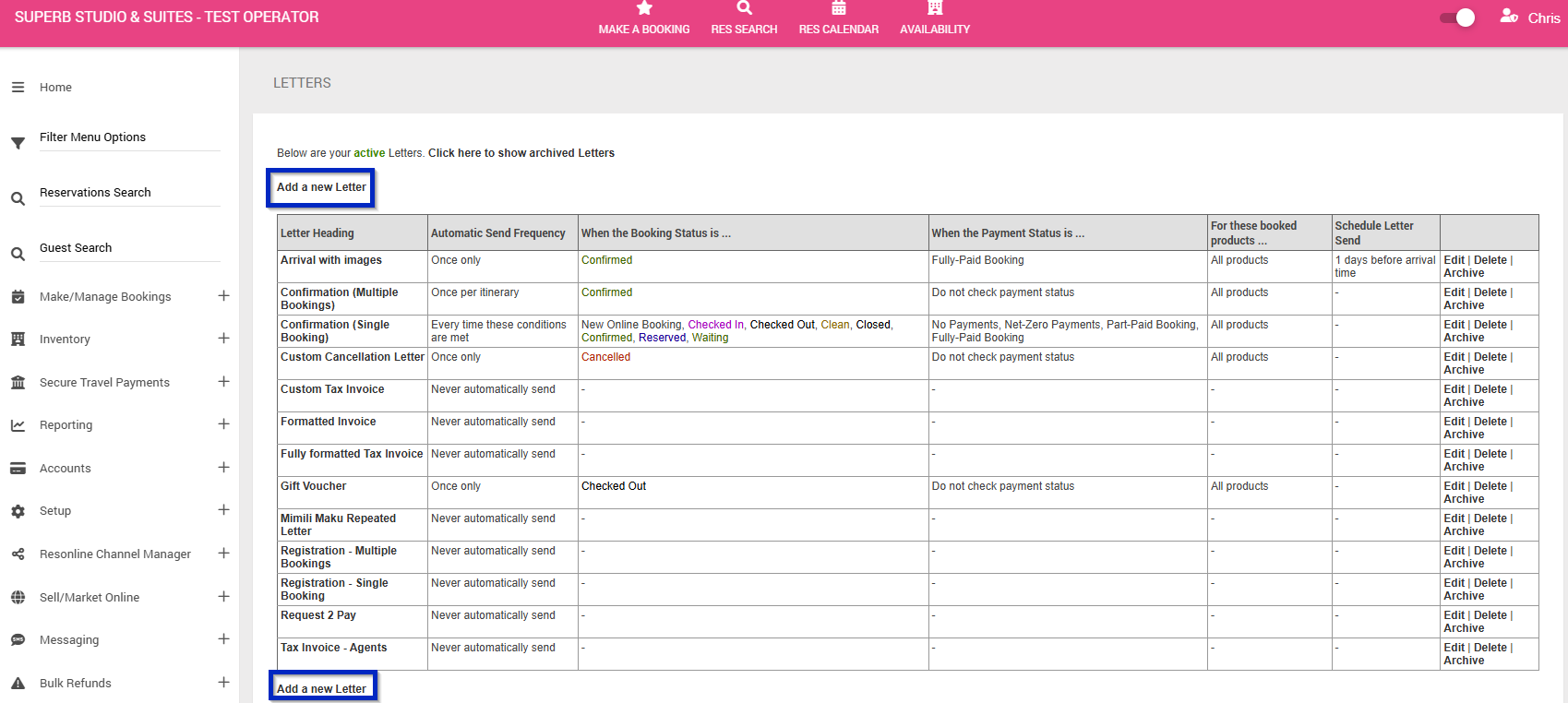
- If you are creating a new email letter template, click Add a New Letter.
- The letter editor will open, allowing you to create and configure your email correspondence.
Setting Up Your Letter
Complete the following fields to configure your correspondence:
- Name: Enter the title of your letter. This will also become the email subject heading received by your guests. Always begin with your property or business name, followed by a description of the correspondence.
Example: Your Property Name – Important Information About Your Booking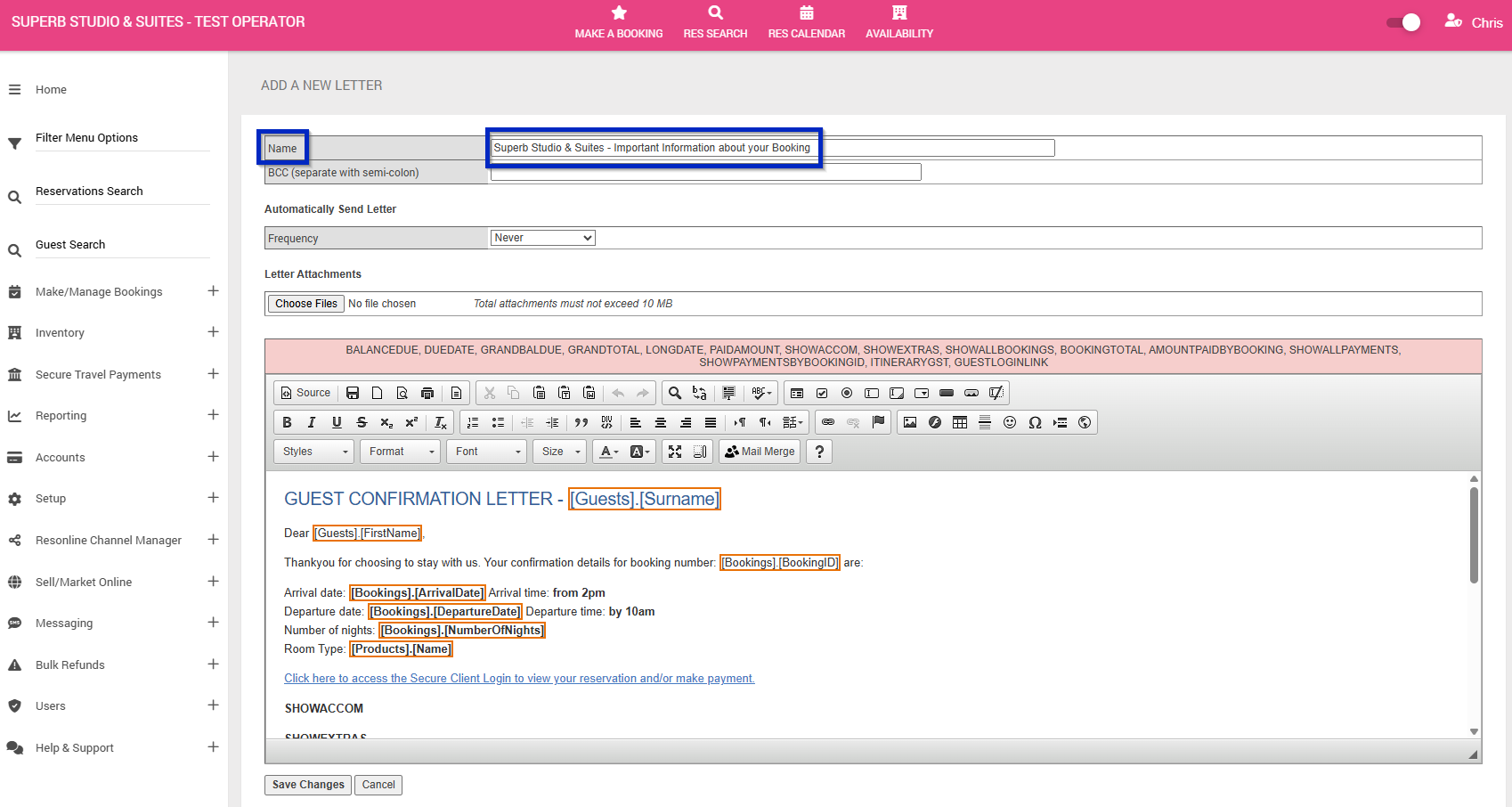
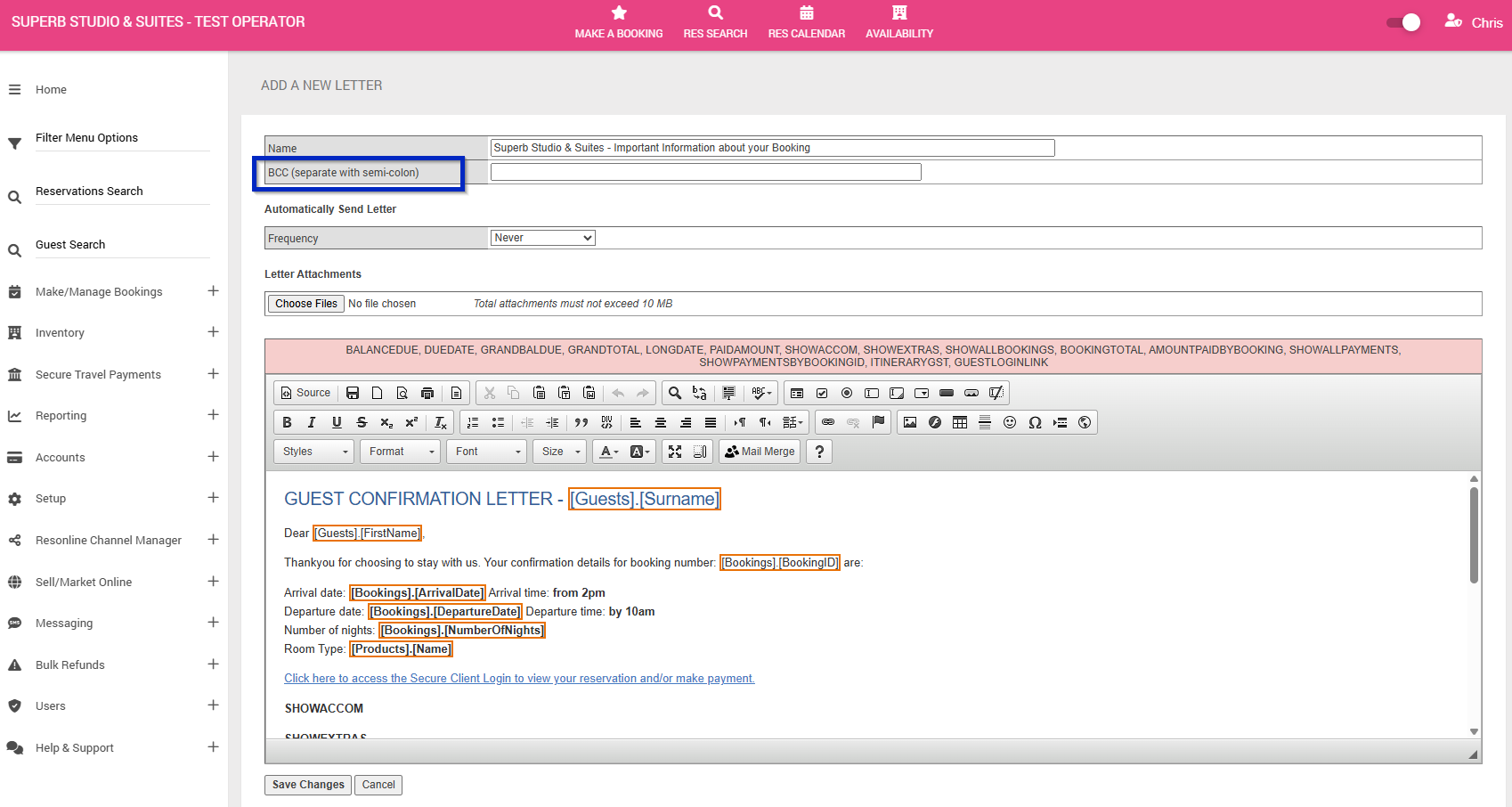
- BCC: Enter an email address if you would like a copy of each individual letter to be sent to this email address(es).
- Letter Body: Enter the information you wish to communicate to your guests. You can customise and style the content to suit your business requirements.
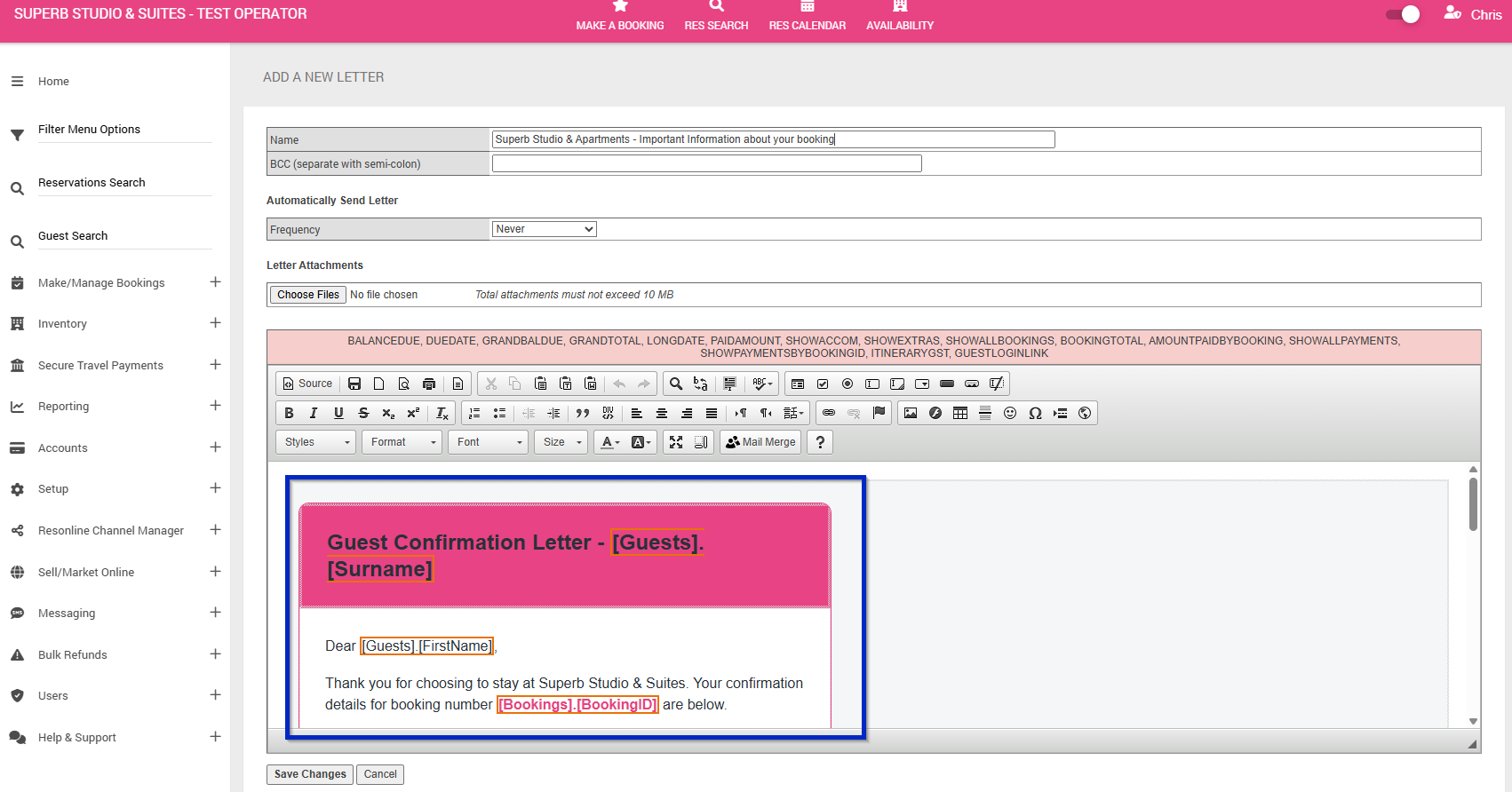
Configuring Rules for Sending the Letter.
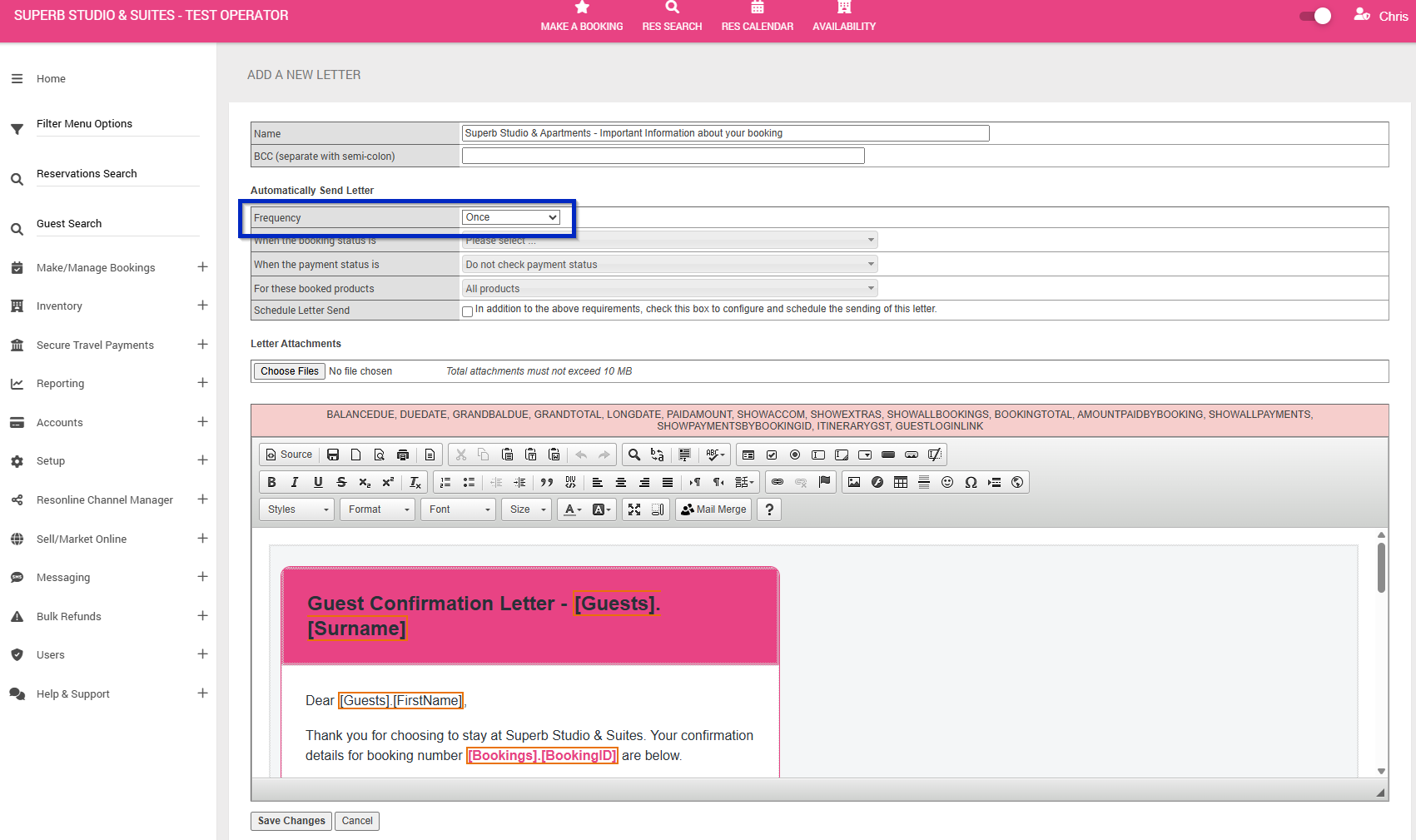
The Automatically Send Letter section determines which bookings are eligible to receive your correspondence.
- Frequency: Change the frequency to Once
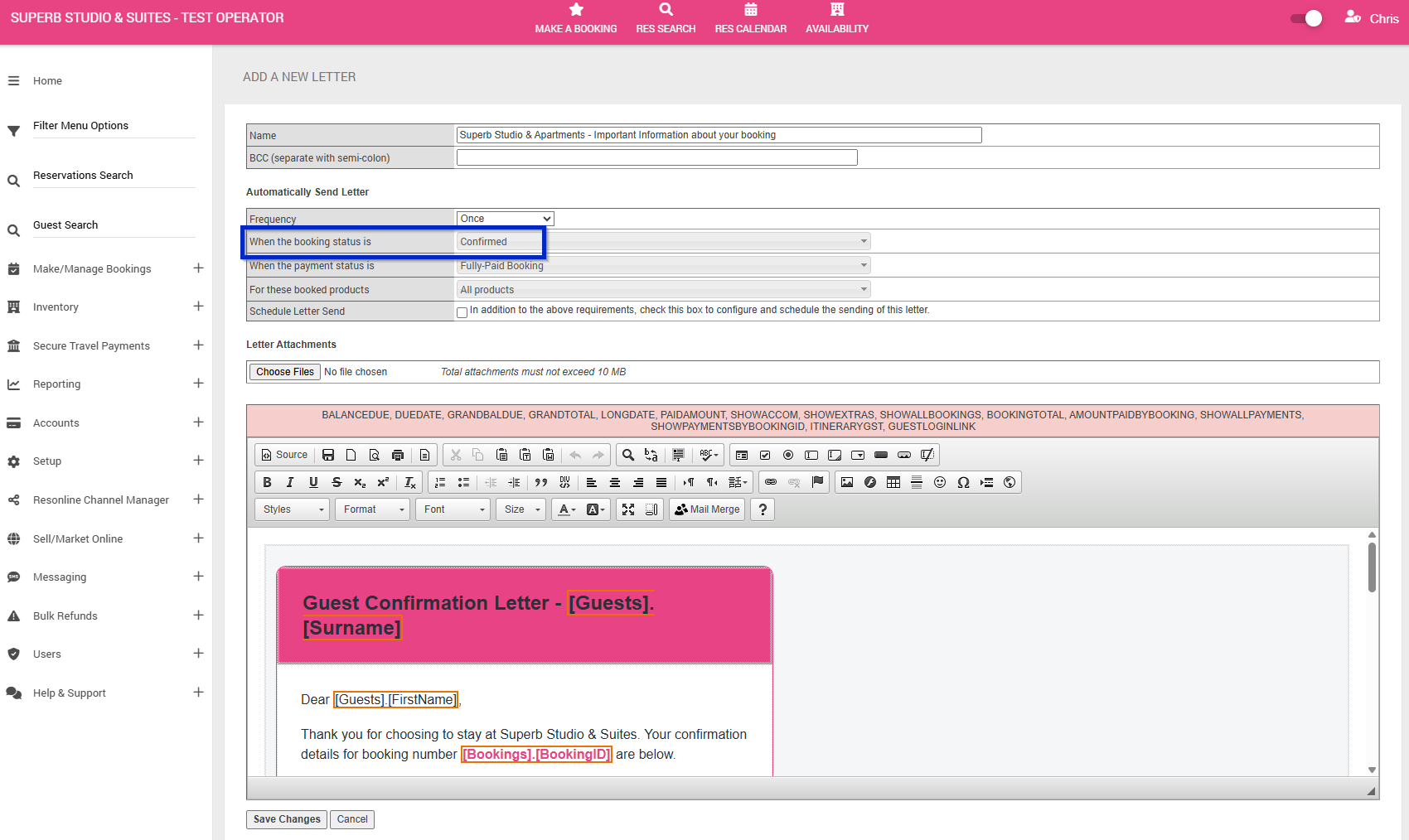
- Booking Status: Set this to Confirmed to target guests with confirmed bookings. This setting may be adjusted depending on your business requirements.
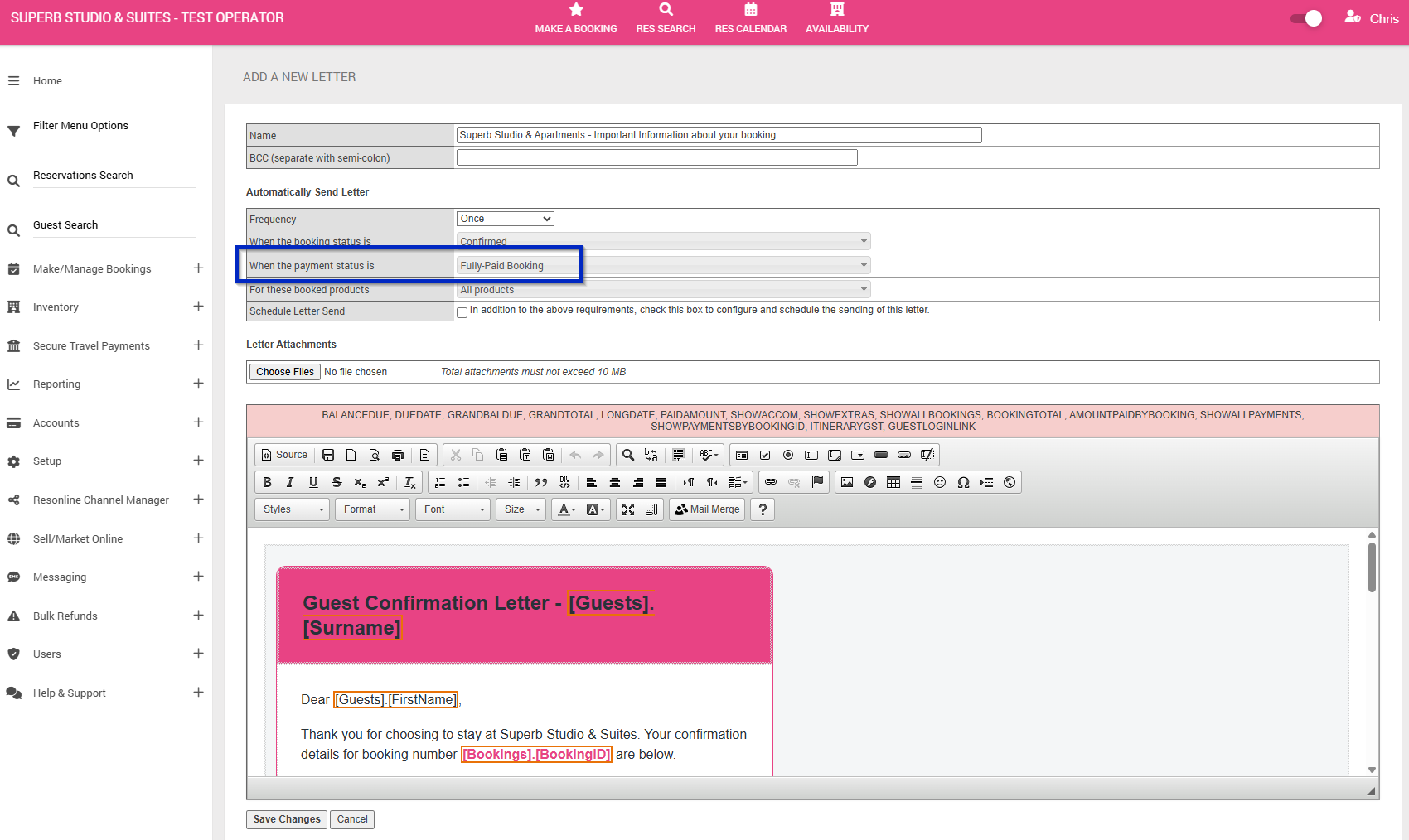
- Payment Status: If required, select a payment status to further filter the bookings that will receive your correspondence.
- Booked Products: If required, select specific products to limit correspondence to guests who have booked those products.
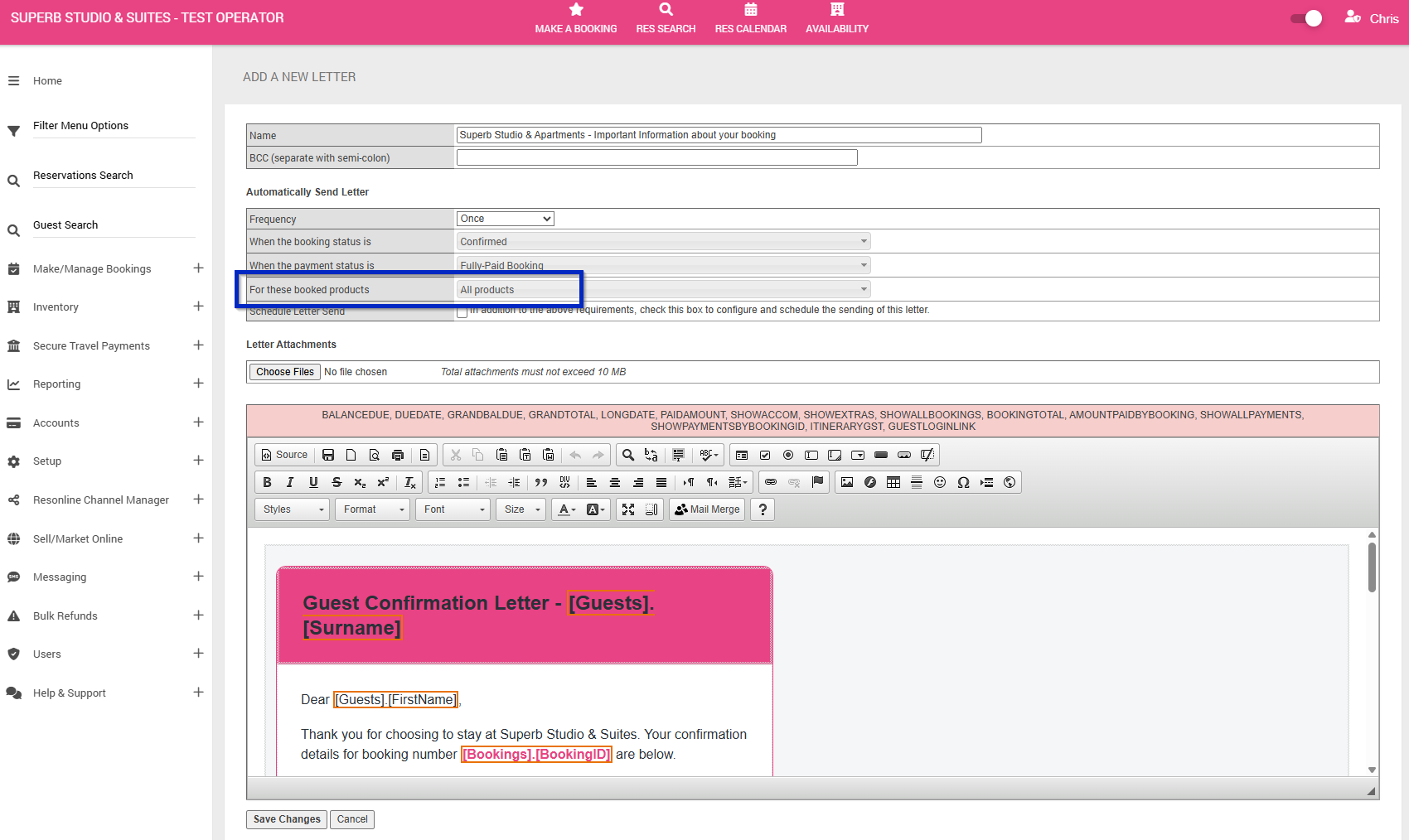
- Schedule Letter / Send: Leave unclicked.
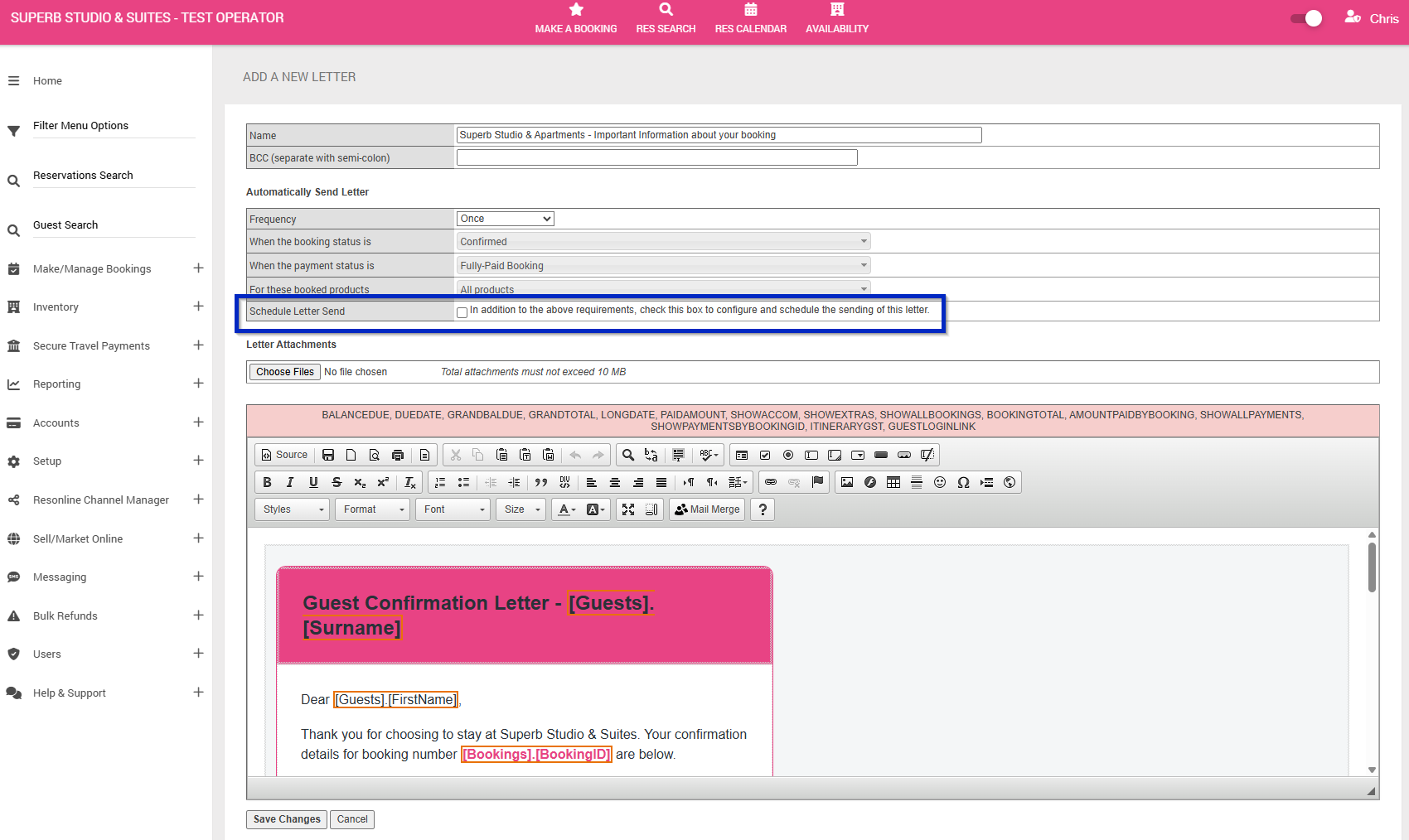
Important: Review all selected filters carefully. Only bookings that satisfy the conditions configured under Automatically Send Letter will be eligible to receive your correspondence.
Saving Your Letter and Sending to Existing Bookings
Once you have completed your letter and configured the appropriate booking criteria:
- Review the letter content, subject heading and booking filters.
- Click Save Changes.
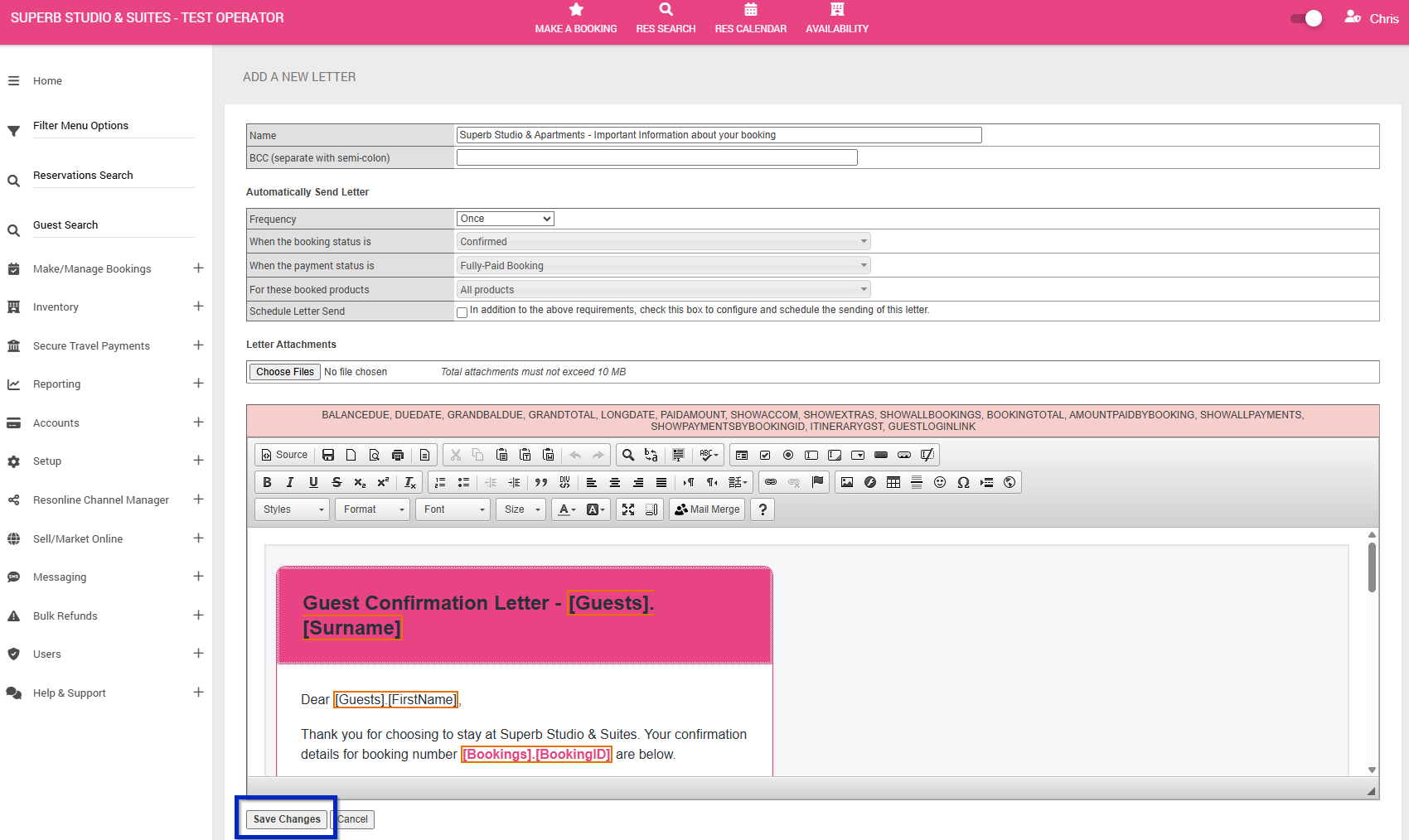
- A confirmation pop-up will appear asking if you wish to Send for existing bookings.
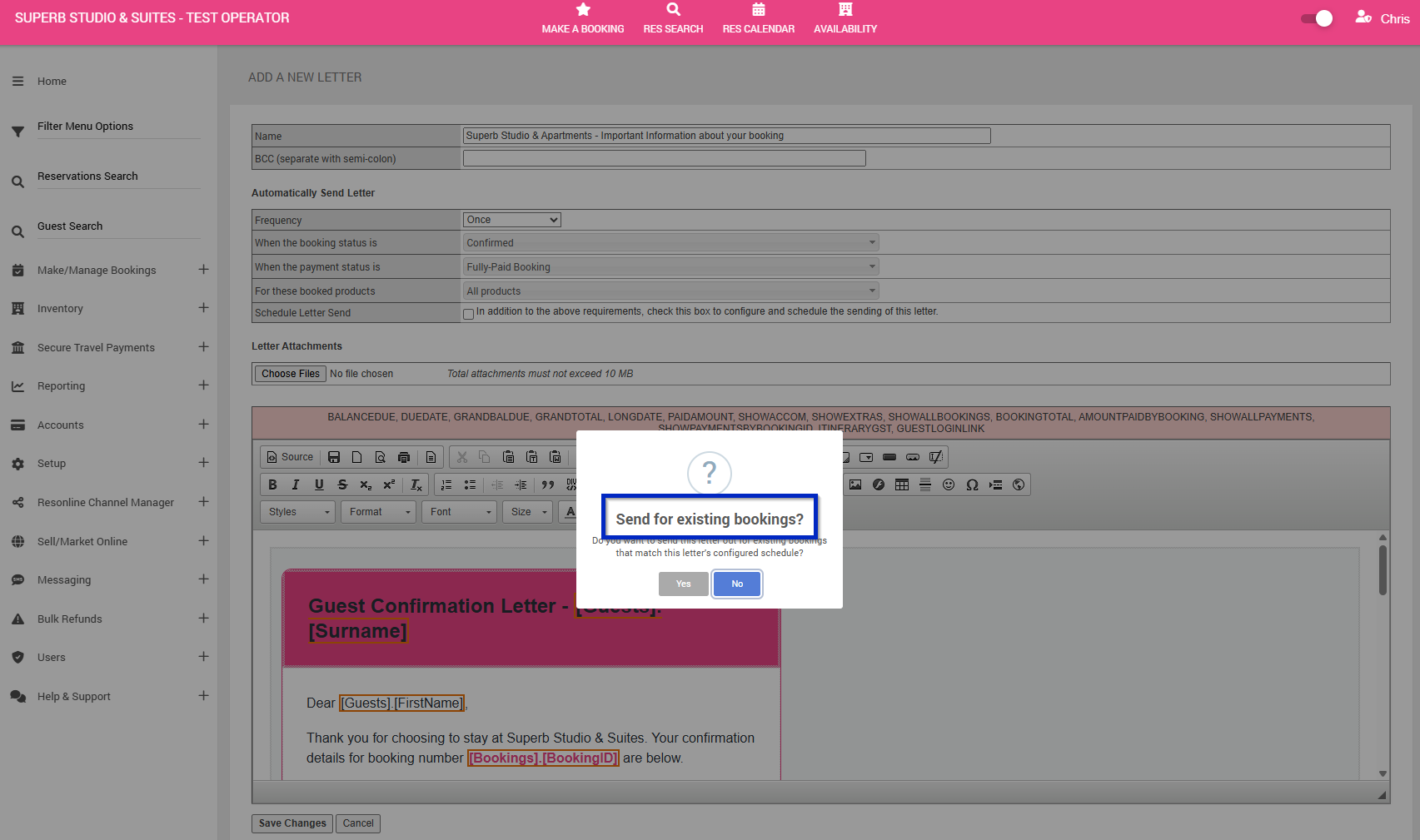
- Select Yes if you wish to send the correspondence to guests with existing bookings that satisfy your configured rules.
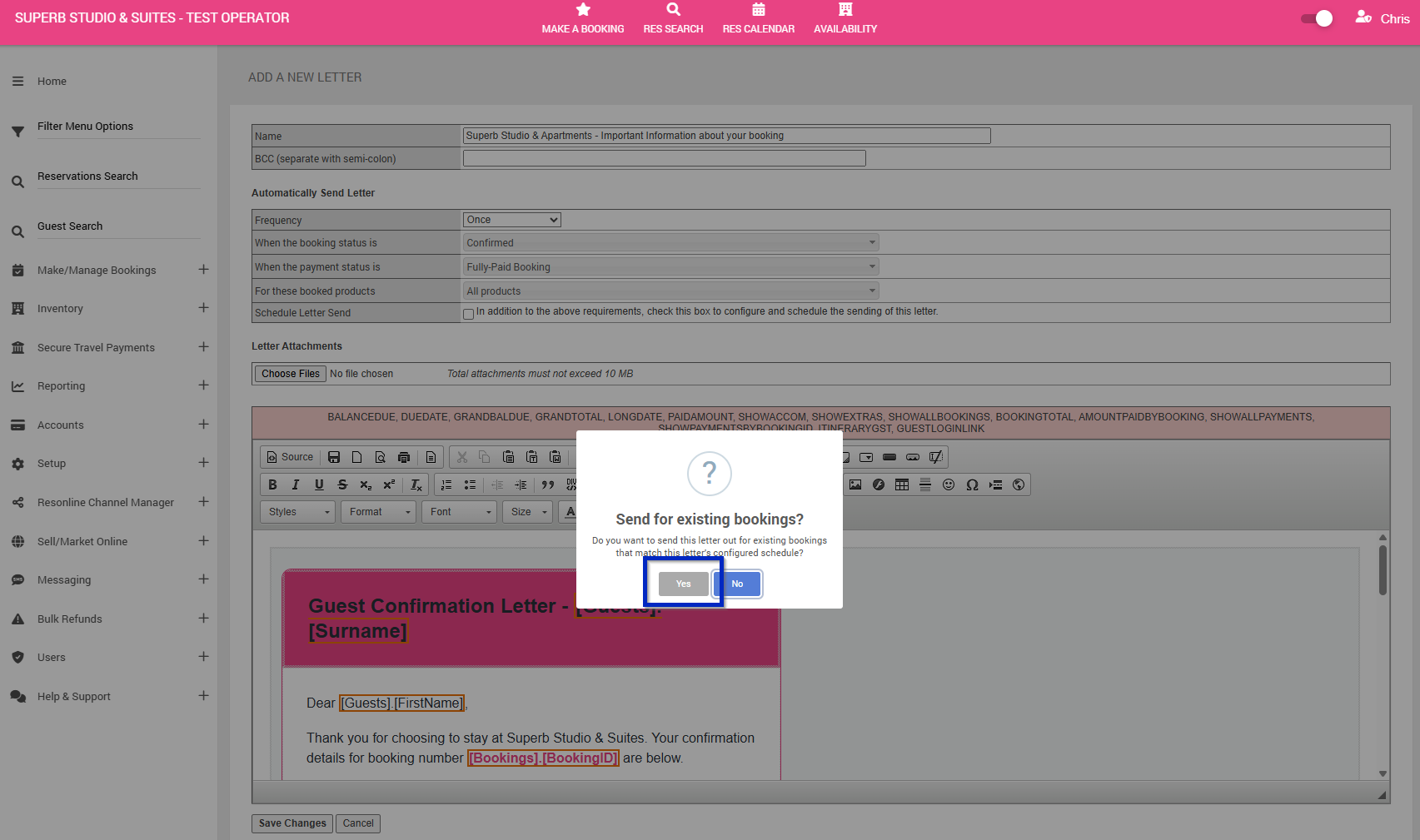
- The system will automatically send the letter to eligible existing bookings based on the conditions selected under Automatically Send Letter.
Important: The Send for existing bookings confirmation is the critical step in this process. Selecting Yes triggers the correspondence for existing bookings that meet your selected criteria. Ensure all settings are correct before confirming.
By following these steps, you can efficiently communicate important information to guests with existing reservations while ensuring correspondence is distributed according to your selected booking criteria.