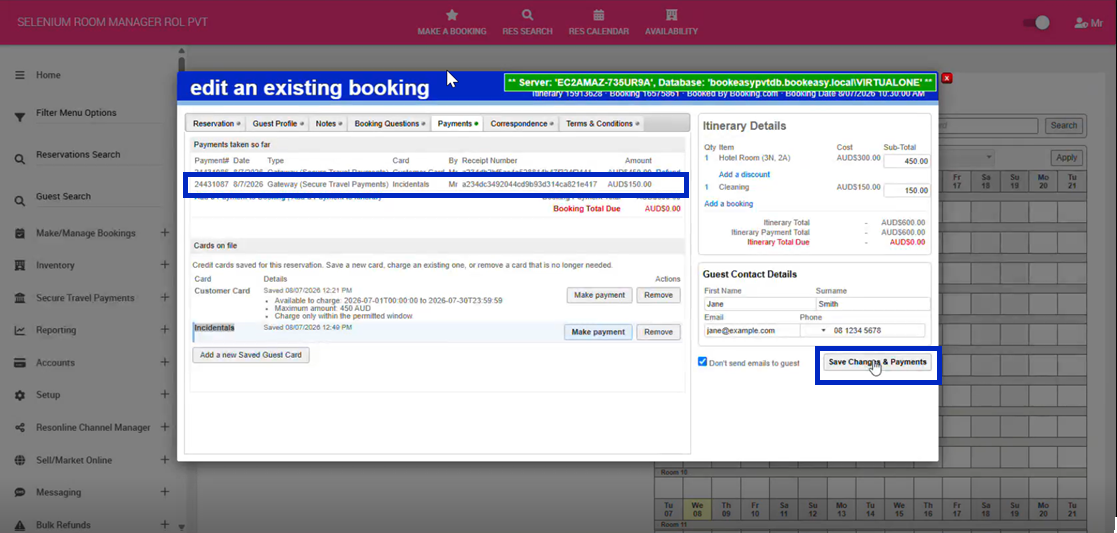
This article explains how to securely tokenise and manage multiple payment cards against a booking.
In this article you'll learn how to:
- Add additional payment cards.
- Manage tokenised cards.
- Remove payment cards.
- Process payments using the appropriate card.
Before you begin
- A supported payment gateway must be connected.
- Cards remain tokenised for up to 7 days after check-out.
Add and Tokenise an Additional Card
1. Select and edit a reservation
2. Once inside your booking, Click on the Payment tab
3. Navigate to the heading Cards on File
4. Click Add a New Saved Guest Card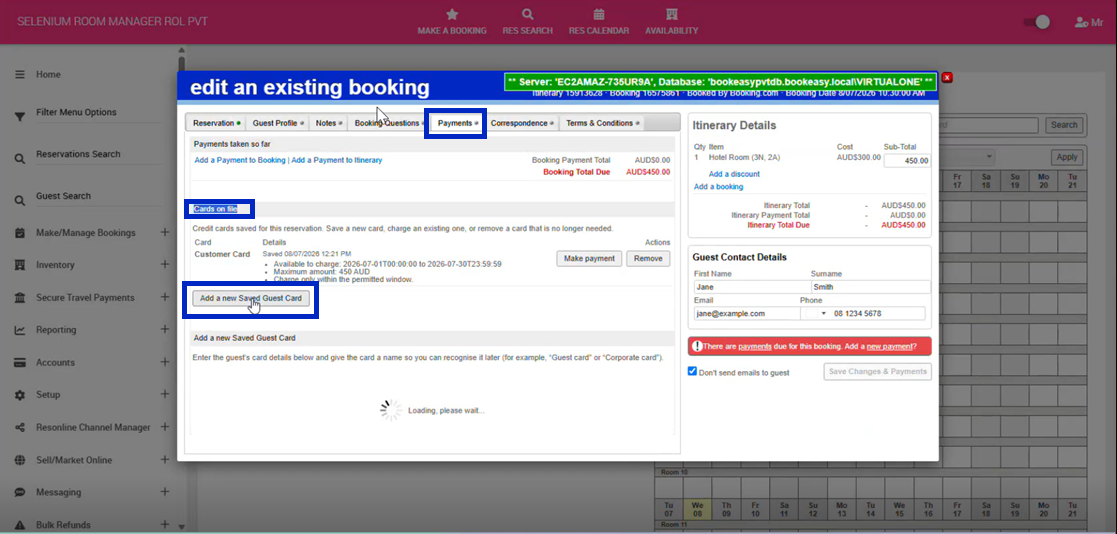
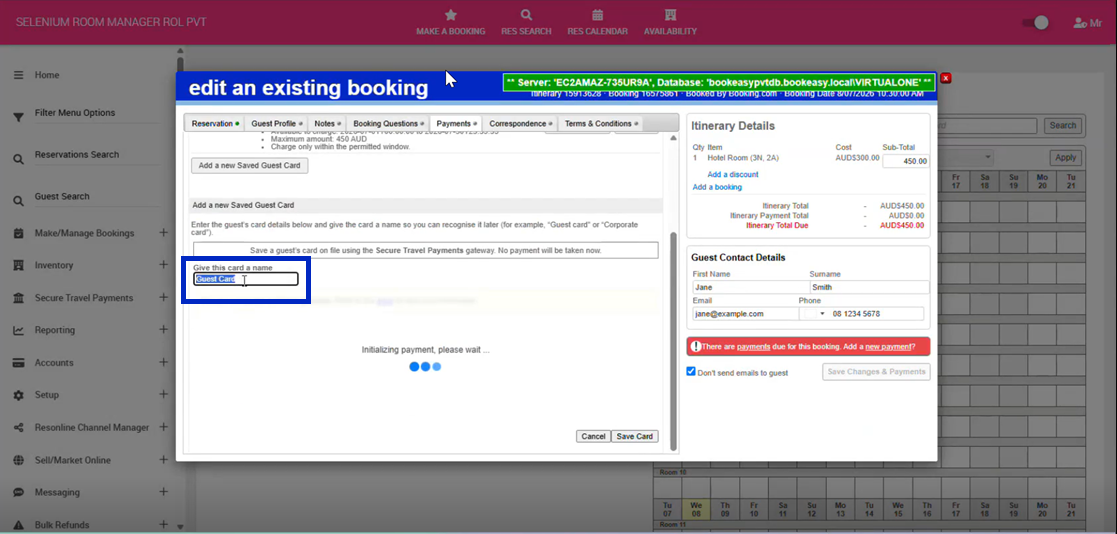
5. Once the page has loaded, under the Give this card a name field, type in the name for your card i.e Incidentals
6. You will then be prompted to type in the credit card information. Once entered, click Save Card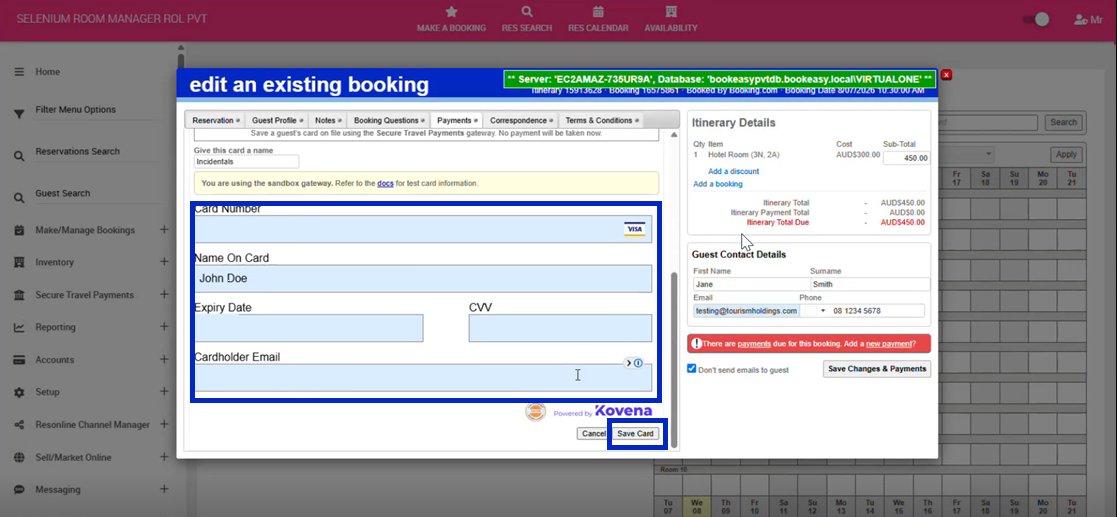
7. Your tokenised card will now be available under the Payment tab of your booking.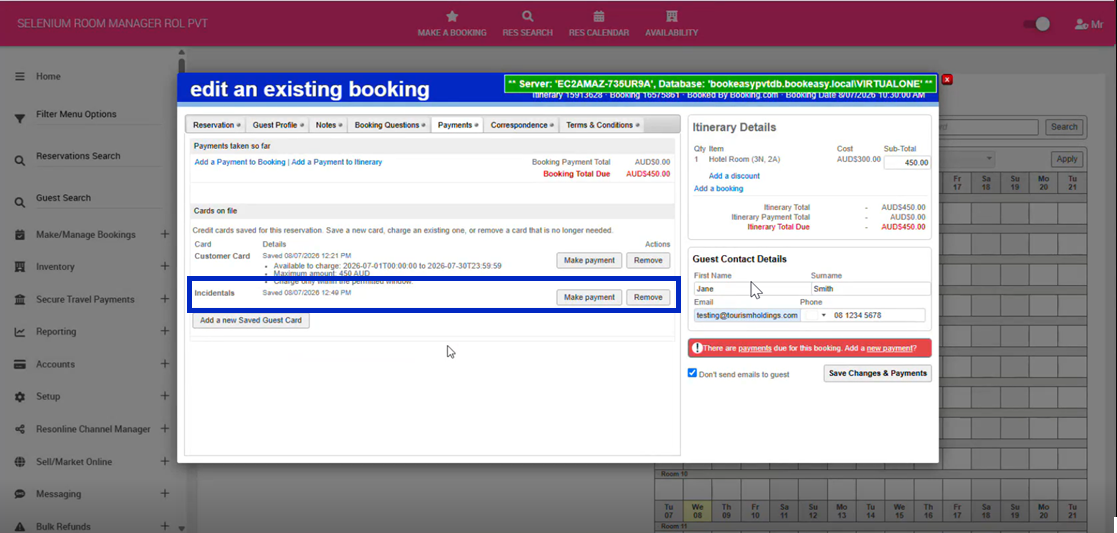
8. Click, Save Changes & Payments
Remove Payment Cards
1. Select and edit a reservation
2. Once inside your booking, Click on the Payment tab
3. Navigate to the heading Cards on File
4.Click Remove, next to the card you wish to remove
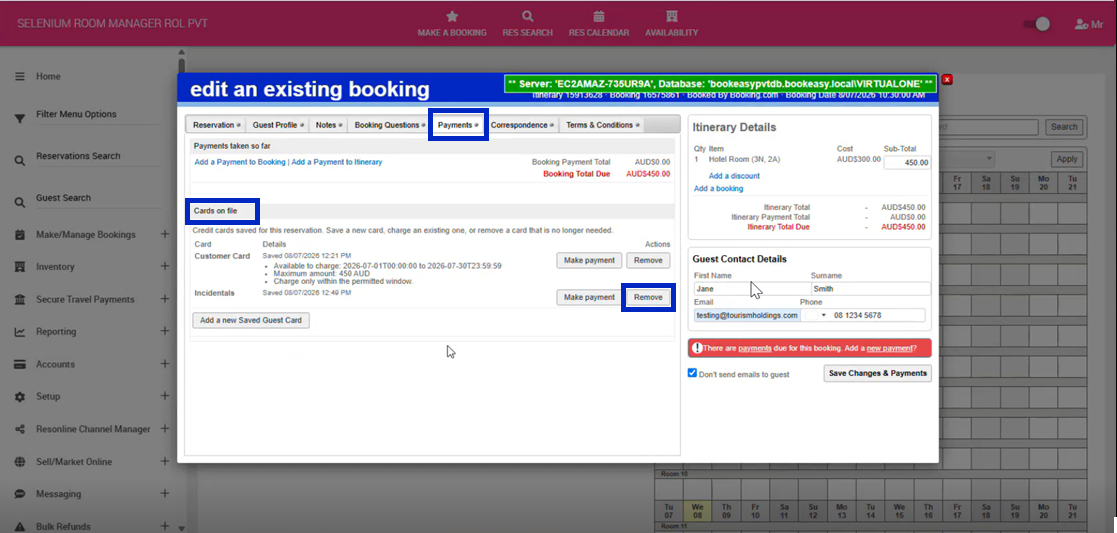
5. Click, Save Changes & Payments
Process Payments using the Appropriate Card: Example Charging Extras Post Checkout
1. Select and edit a reservation
2. Once inside your booking, Click on the Reservations tab
3. Navigate to the Extras heading
4. Select your extras from the drop down, adjust your pricing on the left if required
5. Click Save Changes & Payments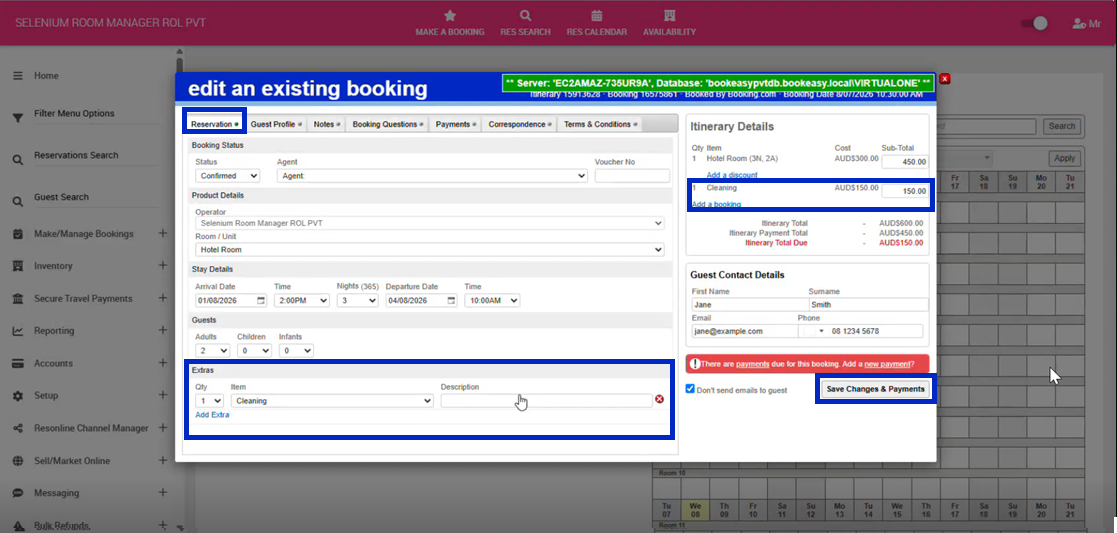
6. Once saved, click on the Payments tab
7. Navigate to Cards on File
8. Select, Make a Payment on the appropriate card you wish to charge.
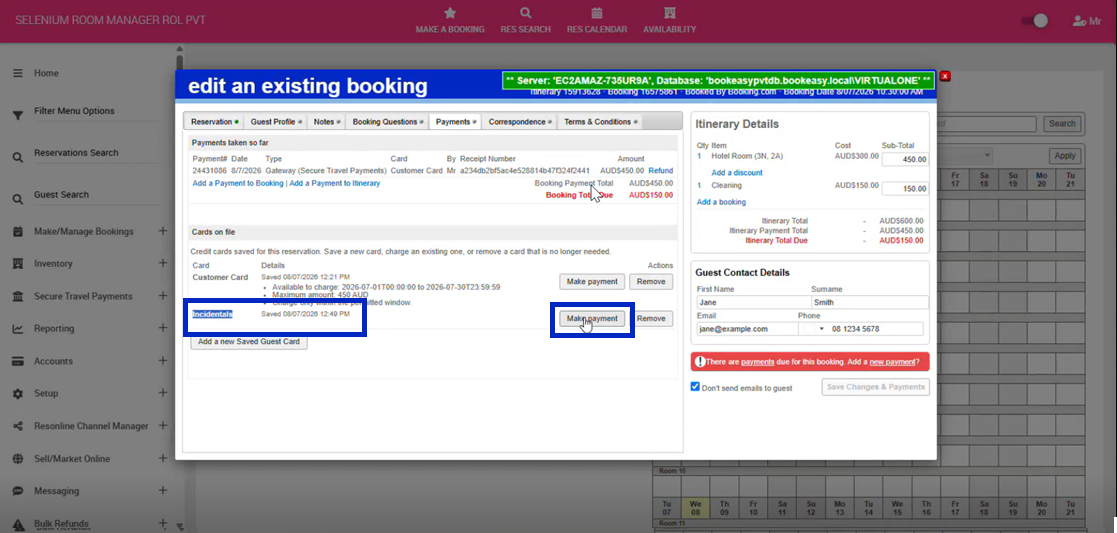
9. Review the amount to charge, the card selected before clicking Make Payment
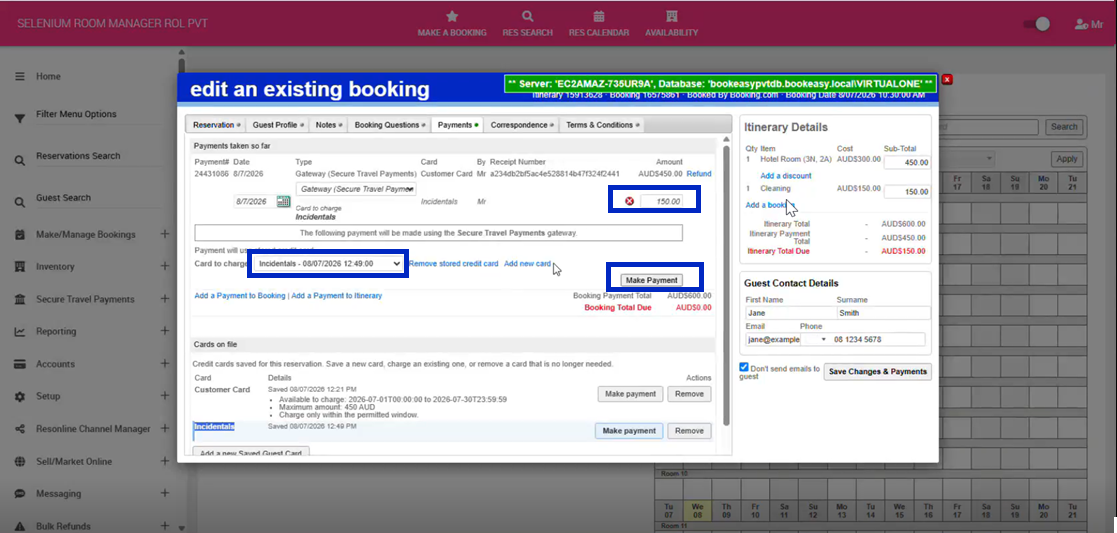
10. Once completed, click Save Changes & Payment