This guide shows you how to upload and manage images for your property on the online booking engine and Marketplace. Images are shared across both, so updates will automatically apply to each. Keeping your images high-quality and current helps your property stand out and attract more bookings.
Standard Property Images
Property images are displayed as a carousel gallery at the top of your booking engine page (see example below). For best results, use JPEG images in landscape format, sized at 800 × 600 pixels, with a resolution of at least 72 dpi.
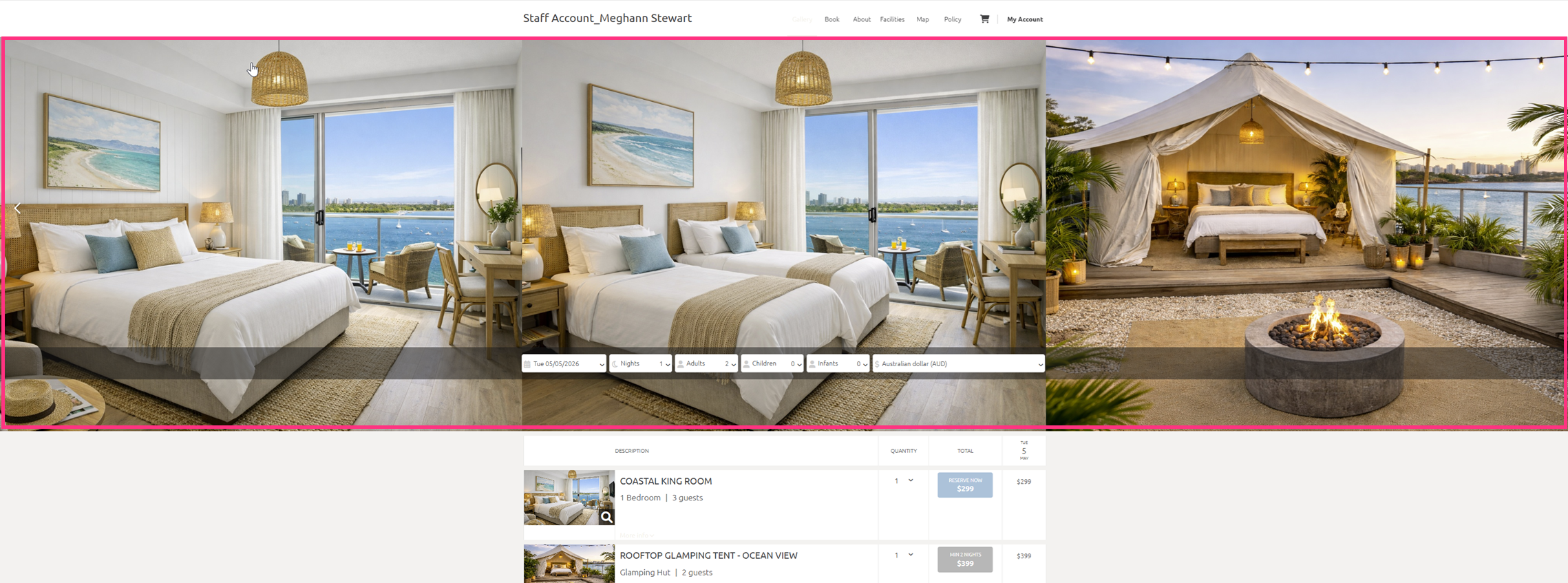
To Add Property Details
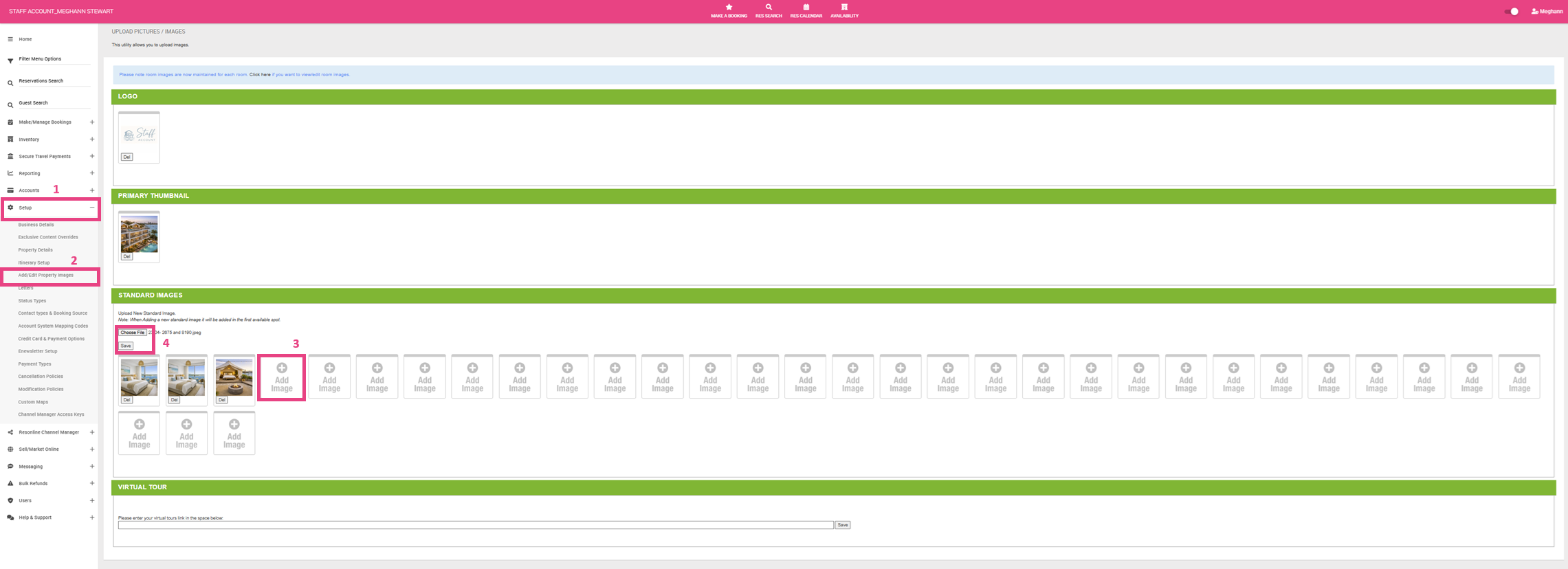
- Navigate to the menu on the top left hand corner
- Click Setup > Add/ Edit Property
- Scroll to Standard Images section > Click + Add Image
- A prompt will appear on your screen. Click Choose File > Select image from your computer
- Click Save
- Continue the process until all of your desired Property Images are loaded.
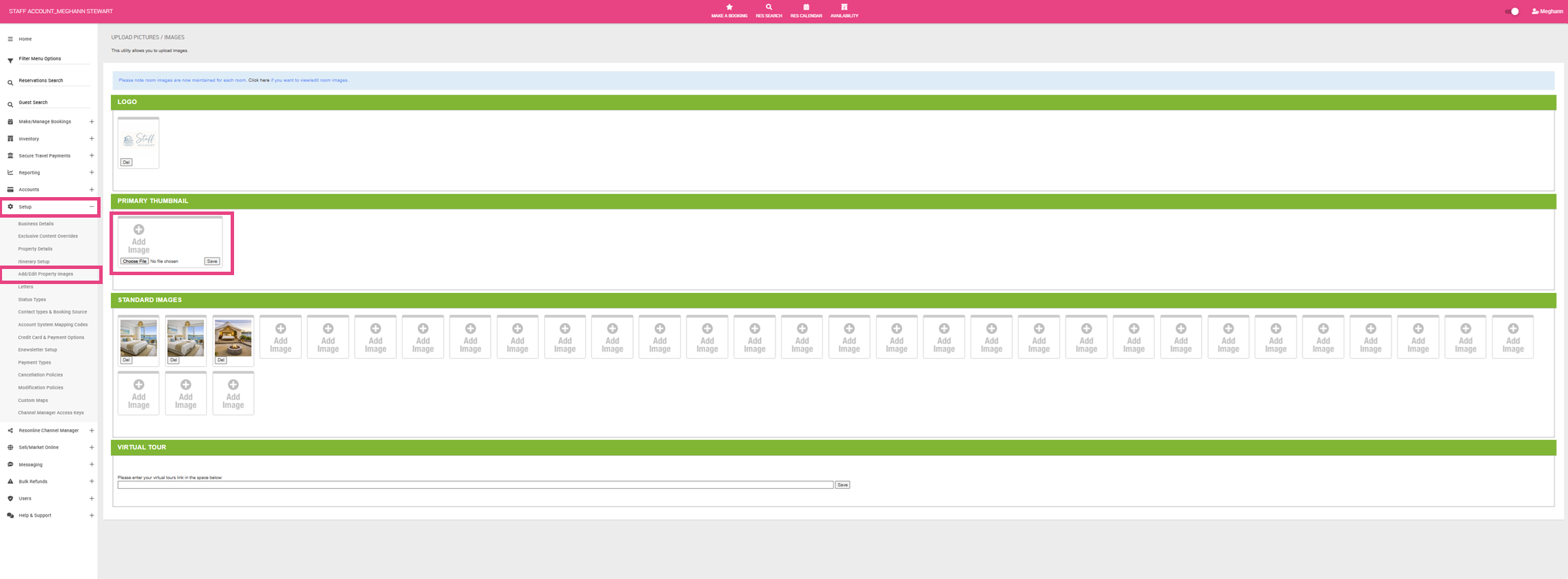
Primary Thumbnail Image
The primary thumbnail is the main image displayed for your property in Marketplace search results. This is the first image customers see when comparing multiple properties, so it plays an important role in attracting attention and driving clicks. Keeping this image high-quality and visually appealing can help your property stand out from competitors.
To Add Primary Thumbnail
- Navigate to the menu on the top left hand corner
- Click Setup > Add/ Edit Property
- Scroll to Primary Thumbnail section > Click + Add Image
- A prompt will appear on your screen. Click Choose File > Select image from your computer
- Click Save
Preview Your Images
- Navigate to the menu on the top left hand corner
- Click Sell/ Market Online > Direct Website Bookings
- Click the Website Implementation tab
- Click the Copy button under, BOOKING PAGE LINK - COPY AND INSERT THIS LINK TO ALL PAGES ON YOUR WEBSITE
- Paste this into your preferred Browser to see how the room images look on your booking engine.