This guide provides step-by-step instructions on how to create a new user and assign appropriate permissions based on their role. Creating users correctly ensures new staff members have timely access to the system with the right level of functionality, whilst maintaining security and system integrity. For detailed information on what each permission level controls, please refer to the "Understanding User Permissions" knowledge base article.
1. Navigate to the left-hand menu (3 lines in the top left hand corner)
2. Click Users > Add a New User
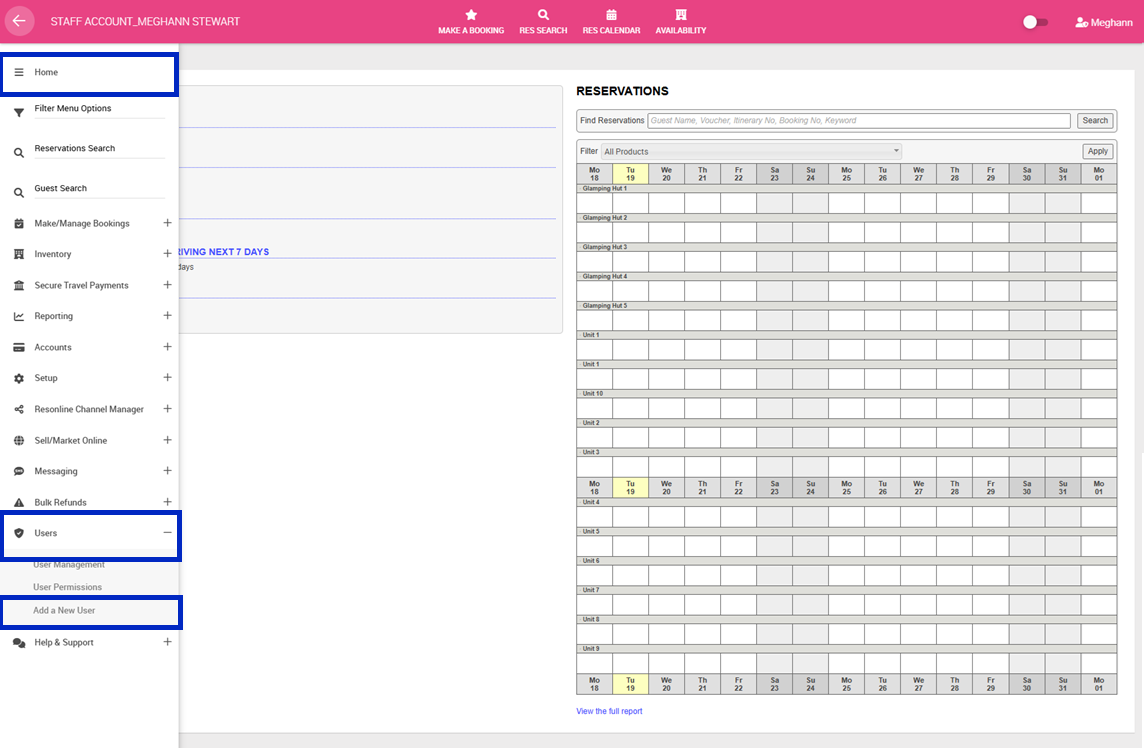
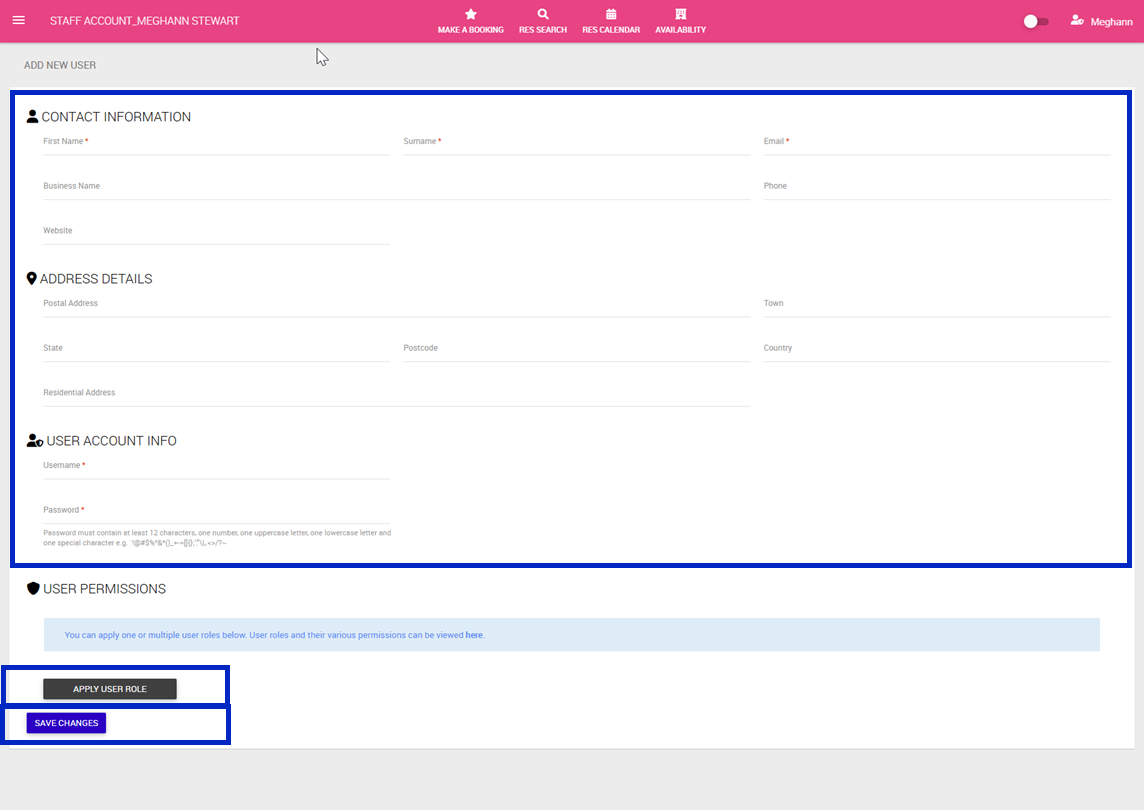
3. Complete the following with the new users information:
- Contact Information: First Name, Last Name, Email are required fields
- Address Details: Not required fields
- User Account Info:
Username- this must be unique to your user and cannot be changed. A suggestion would be firstnamebusinessname i.e janebookeasy
Password: Your new user will reset their password upon their first login. The password you create now is purely for the user creation process. Password must contain at least 12 characters, one number, one uppercase letter, one lowercase letter and one special character e.g. `!@#$%^&*()_+-=[]{};':"\|,.<>/?~ - User Permissions: Click Apply User Role > Select User Role from the Select User Role drop down > Click Apply User Role. Continue adding all User Permissions until the user has the appropriate access to the system
4. Click Save Changes
A new user will not be notified when a new user is setup. You will need to share Bookeasy login link along with their username and prompt them to use the 'Forget Password' option to reset their password.