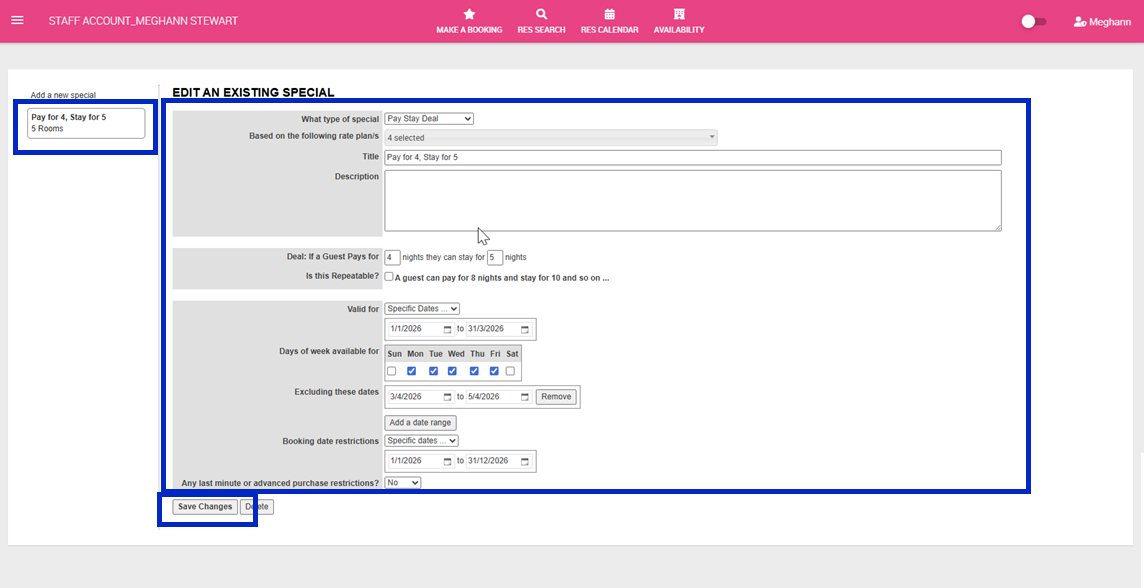
Specials allow you to apply promotional pricing to accommodation using a fixed amount, percentage discount, pay-stay offer or fixed price. This article explains how to set up and manage specials to support targeted promotions and drive bookings.
Note: Specials do not filter through to your distribution channels via Bookeasy Connect. Specials must be setup within your OTA dashboard. Please discuss this with the channel direct. Specials will also flow through to Bookeasy Destinations (if connected) and the Bookeasy Marketplace
Add a Special
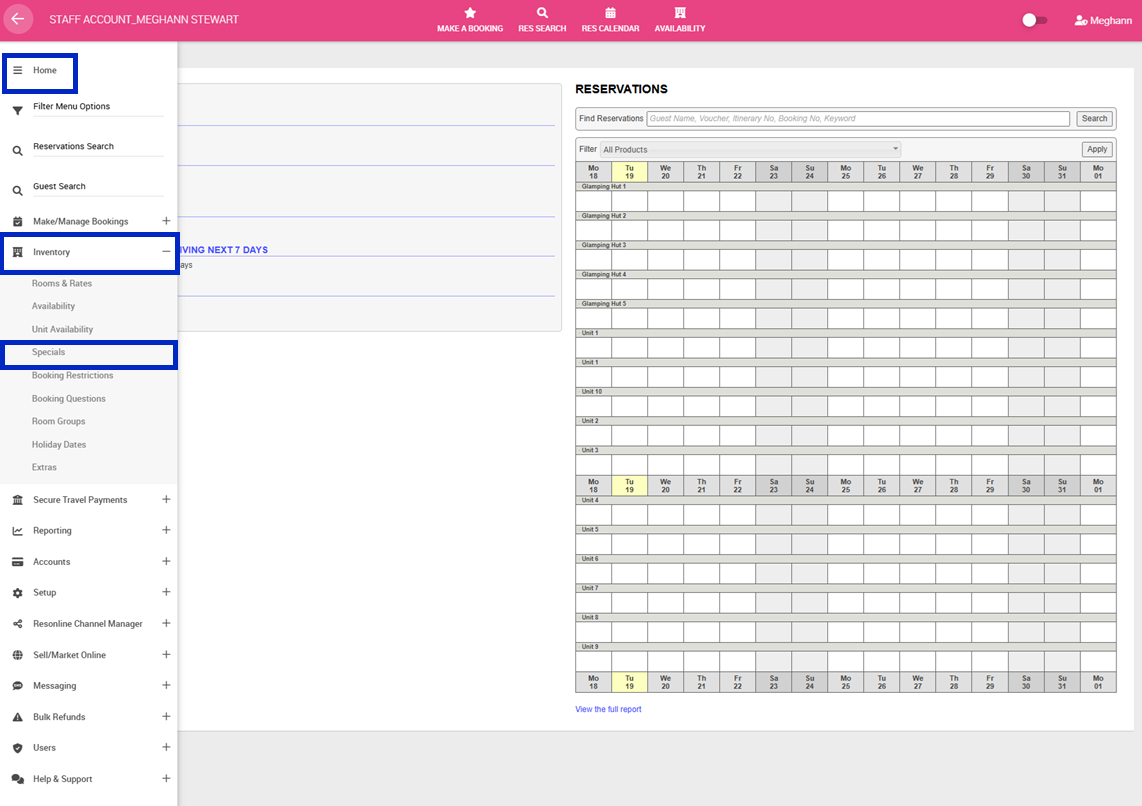
1. Navigate to the left-hand menu (3 lines in the top left hand corner)
2.Click Inventory > Specials
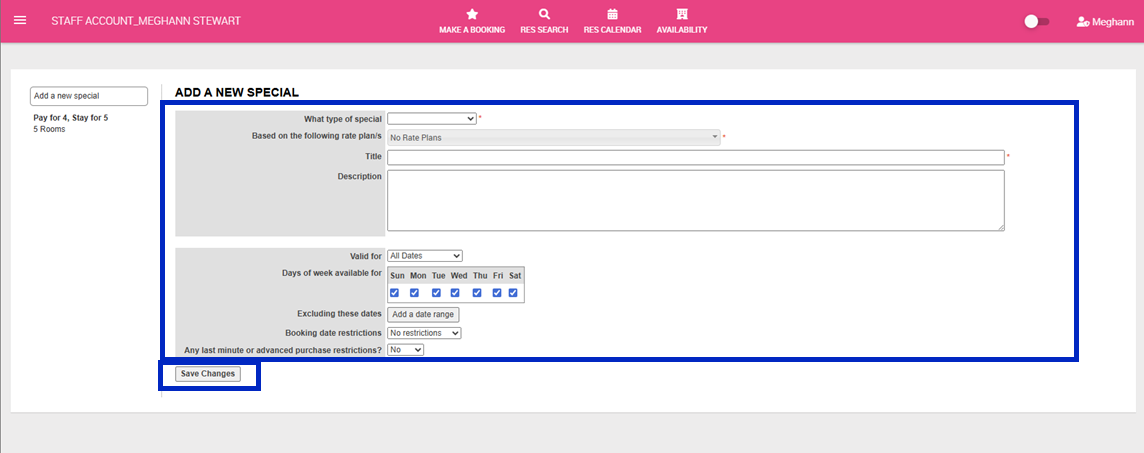
3.Complete the following:
- What type of special: Select the type of promotion you would like to offer;
- Percentage discount: Discount applied to the whole length of stay
- Amount discount: A fixed amount applied to the night rate or the whole length of stay
- Pay stay deal: If the guest pays for x nights, the guest only has to pay for x i.e. pay for 4, stay for 5
- Fixed price deal: A set price if the total number of guests meets the criteria - Based on the following rate plan/s: Select the rate plan for each room type that the special should apply. If your rates are not setup in the system click here.
- Title: Enter the name of the promotion which will be visible to customers.
- Description: Enter a short overview of the promotion which will be visible to customers.
- Valid For: This is how long the promotionis bookable for.
- Days of week available for: Days of the week that the promotion is available for. This allows you to still yield and protect popular days.
- Excluding these dates: Add in any block out dates i.e public holidays that you do not want the special to be available.
- Booking date restrictions: The dates that the special is bookable for.
- Any last minute or advanced purchase restrictions? Select Yes to specify how many days before arrival the special must be booked.
4.Click Save Changes
Edit a Special
1.Navigate to the left-hand menu (3 lines in the top left hand corner)
2.Click Inventory > Specials
3.Click on the Special you wish to edit on the left
4.Adjust Special details
5.Click Save Changes