Booking questions are completed by guests during the booking process on your booking engine and allow you to collect important information before arrival. Responses to certain booking questions can also trigger additional charges on the booking, such as rollaway beds or welcome baskets.
1. Navigate to the left-hand menu (3 lines in the top left hand corner)
2. Click Inventory > Booking Questions
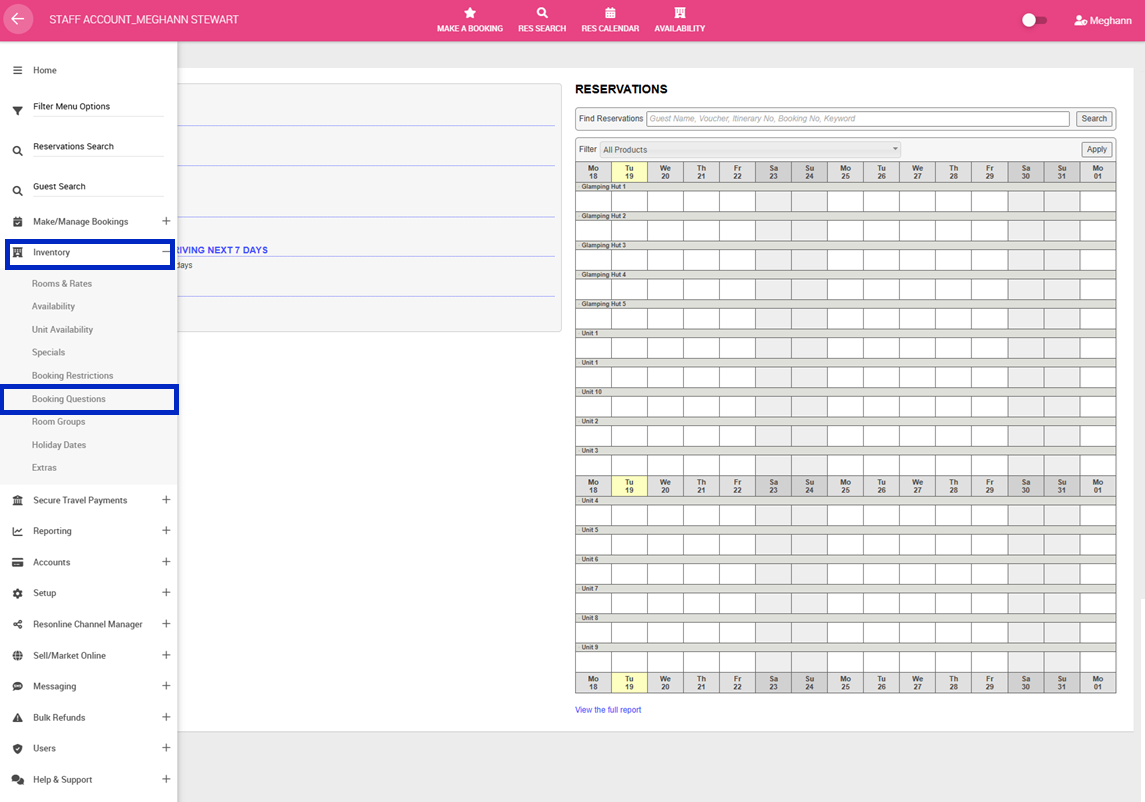
3. Click Add a new set of Booking Questions
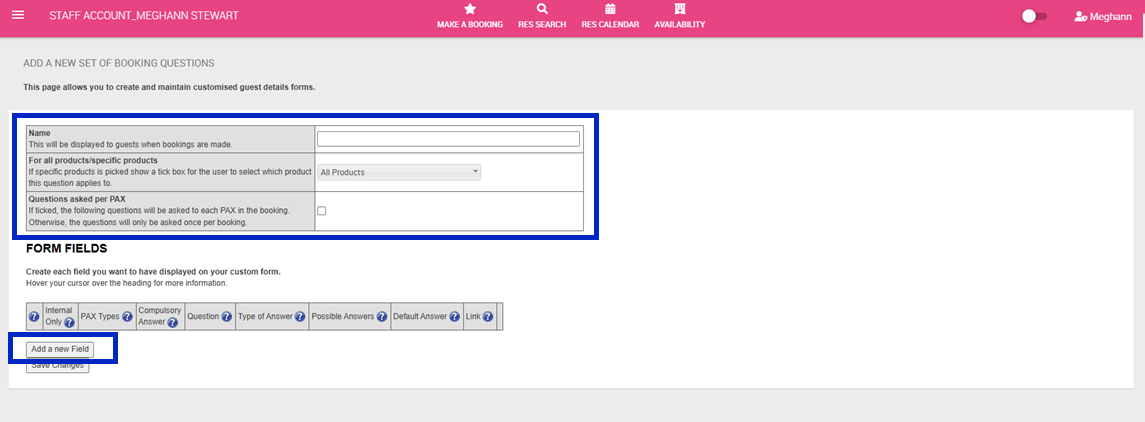
- Complete the following:
- Name: This is the heading that will be displayed above your question to customers when they are making the booking.
- For all products/ specific products: Indicate whether this question is applicable when purchasing all product (rooms) or if it should only be shown when booking specific product.
- Questions asked per PAX: If selected, your question will be asked to each PAX in the booking.
Otherwise, the questions will only be asked once per booking
4. Click Add a new Field
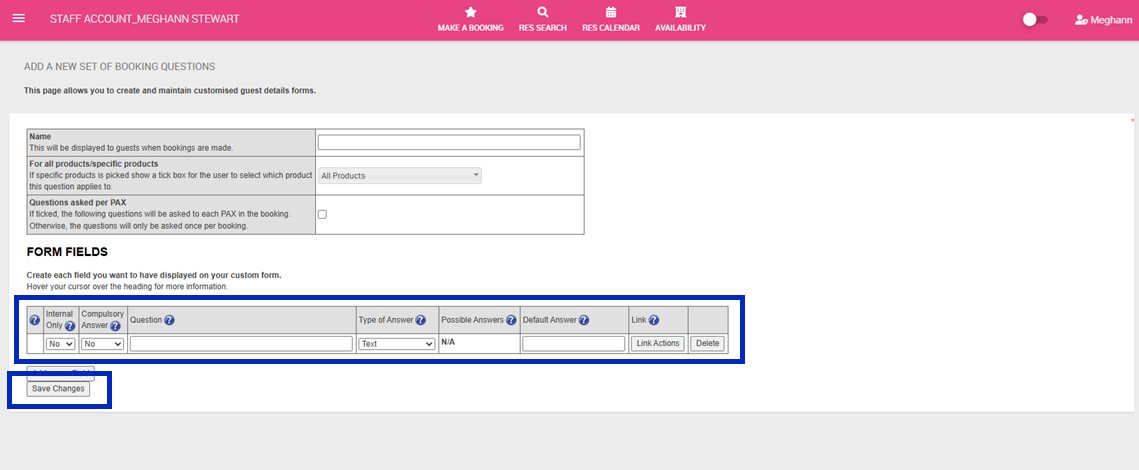
5. Complete the following:
- Internal Only: If you do not want customers to see this question when making a booking select, Yes
- Compulsory Answer: If this question is compulsory, select Yes
- Question: The question that will appear to the customer.
- Type of Answer: The answer field that will display to the guest i.e a Yes/ No response, Text so customers can write a response etc.
Note: If you select, multiple choice or single choice, you can write the selections under the Possible Answers box. Please ensure you separate answers by putting each on a new line. - Default Answer: If you would like an answer to be preselected, select your preference here.
- Link: If you would like to ask another question based on the responses from your intial question or you would like the system to action an additional charge based on the response, click Link Actions
- Complete the following:
- Answers: The initial answer that should trigger this question to appear
- Action: As a result of the answer, should the system; Make a cost adjustment, Add a product, Ask a Question
- Details: The information under the details column will change pending your action response. Complete accordingly
- Message to Guest: This text will show as a line item on the booking summary to the customer.
6. Click Save Changes
7. Continue to add new booking questions until you are obtaining all the information you require from guests whilst making a booking.
Example: Adding a Cleaning Fee
| Name | Cleaning Fee |
| For all products/specific products | All Products |
| Questions asked per PAX | Unselected |
Form Fields
| Internal Only | Compulsary Answer | Question | Type of Answer | Possible Answers | Default Answer | Link |
| No | Yes | Do you agree to a $100 cleaning fee? | Single Choice | I agree | Leave Blank | Click Link Actions |
Link Actions:
| Answers | Action | Details | Message to Guest |
| I agree | Make a Cost Adjustment | 100 $AUD Per Booking | Cleaning Fee |