Adding a new room to your venue is quick and gets your space bookable in minutes. Simply enter the room name, capacity, and key details, and it'll appear on your booking engine for customers to reserve. Let's set up your new room.
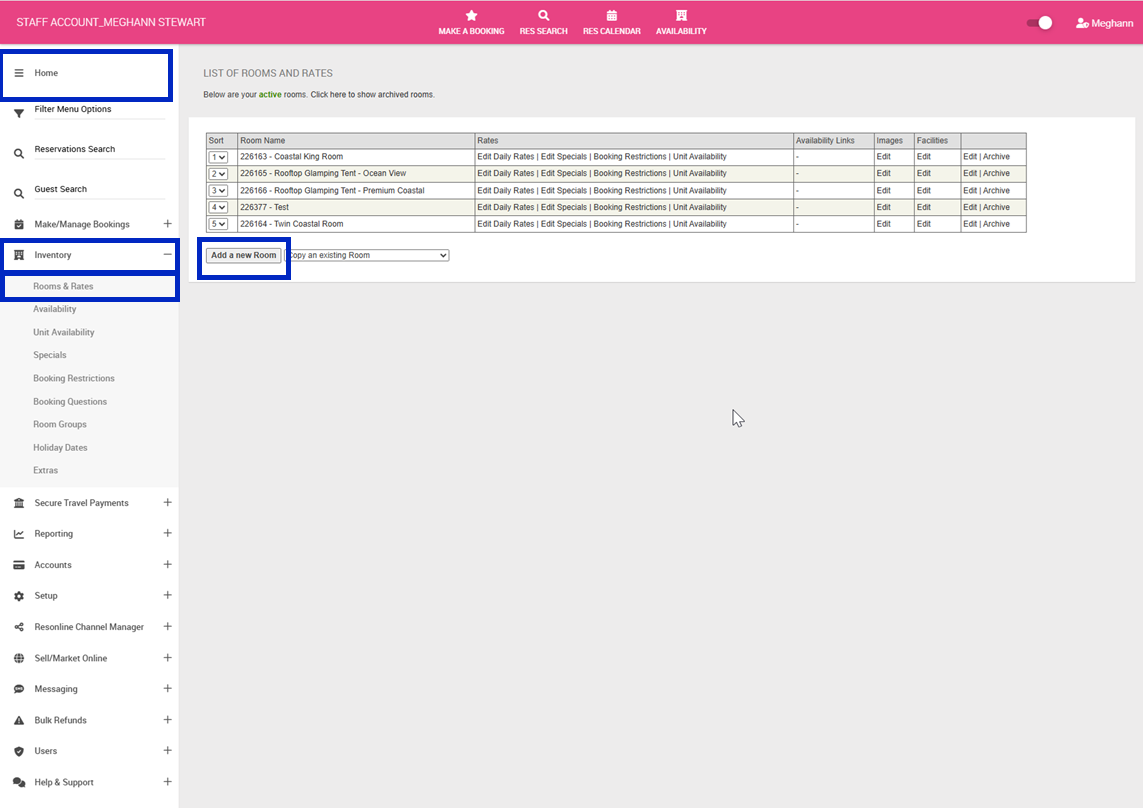
1.Navigate to the left hand menu > Click Inventory > Click Rooms & Rates
2. Click Add a new Room to create or click the applicable room name to edit
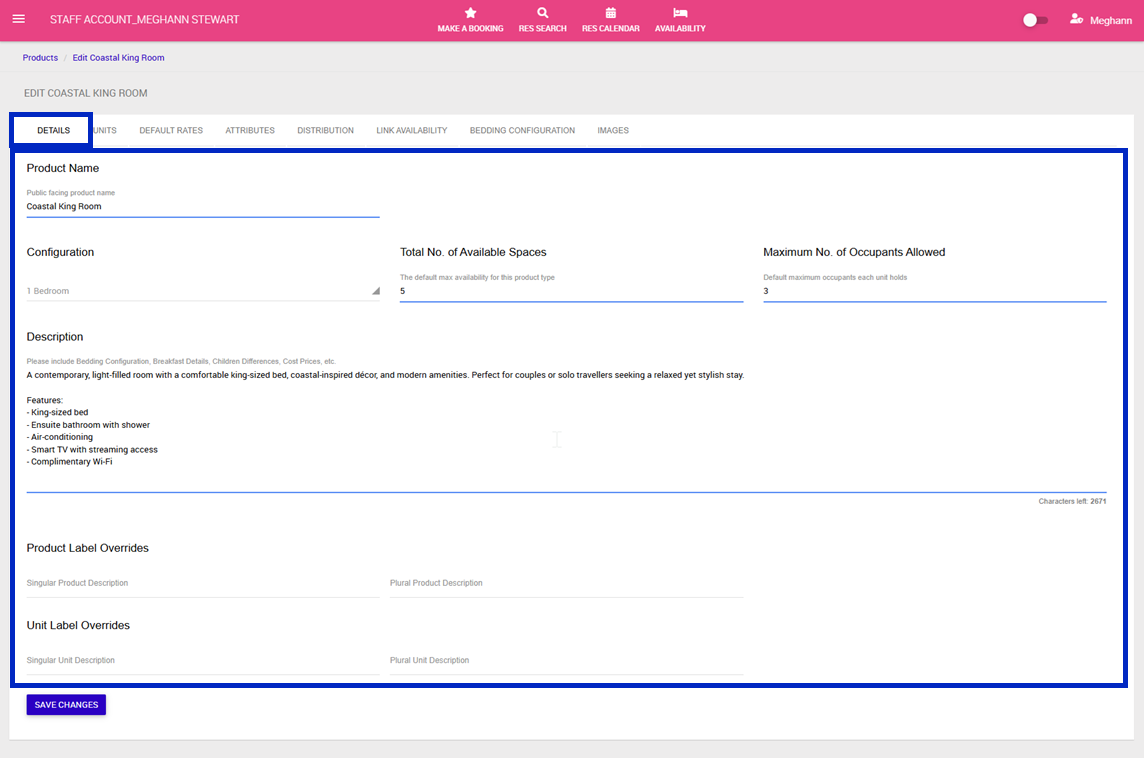
3. Under the Details tab complete the following:
- Product Name: This is the room name that will display on your booking engine on your website
- Configuration: Configuration: Select the most appropriate room type from the dropdown (e.g., Standard Room, Deluxe Suite, etc.)
- Total No. of Available Spaces: How many of this room type is available at your property
- Maximum No. of Occupants Allowed: Default maximum occupants each unit holds
- Description: This room description will display on your booking engine. This description should be selling your accommodation room and highlighting the features.
- Product Label Overrides: Customise the terminology used for this room type throughout the booking system. Leave blank to use your default settings, or enter custom terms (e.g., "Cabin" / "Cabins" instead of "Room" / "Rooms"). The placeholder text shows your current default value.
- Unit Label Overrides: Customise what individual rooms are called within this room type. Leave blank to use your default settings, or enter custom terms (e.g., "Apartment" / "Apartments" instead of "Unit" / "Units"). The placeholder text shows your current default value.
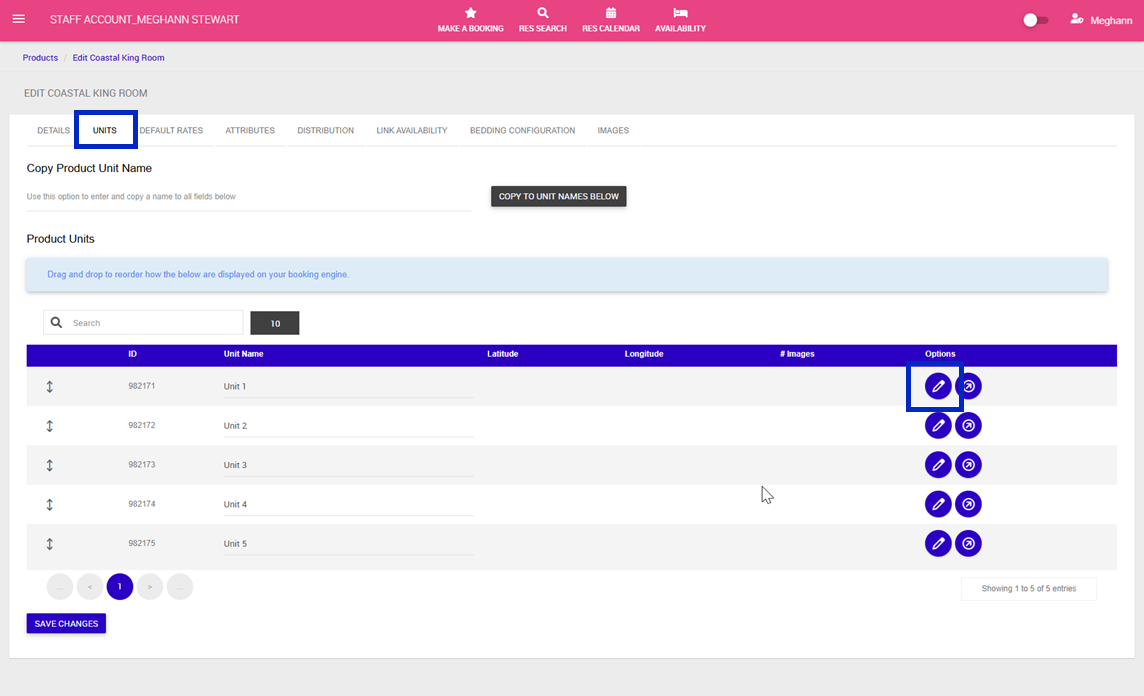
4. Click the Units tab: This is displaying the individual units you have for this room type. These unit names are for internal management purposes only and help you identify specific rooms within your property (e.g., Room 101, Cabin A, etc.)
5. To edit the unit name, click the pencil on the right > Your unit name will now be highlighted and available for you to edit. Repeat until all the unit names are correct.
Note: These unit names will not display on the booking engine.
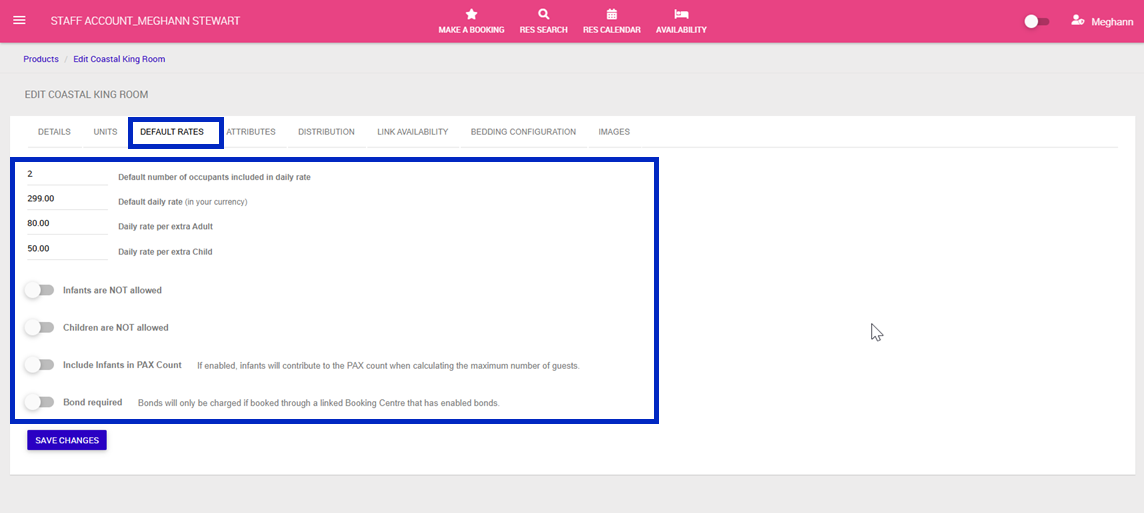
6. Click the Default Rates tab and complete the following fields:
- Default Number of Occupants Included in Daily Rate: Number of guests included in your base rate before extra occupant charges apply
- Default daily rate: You can set your custom room rates once you have completed building your new room
- Daily rate per extra Adult: Set to $0 if no extra rate is applicable
- Daily rate per extra Child: Set to $0 if no extra rate is applicable
- Toggle remaining settings
Note: The above is the minimum information required to build a room and you can now 'Save Changes' should you wish.
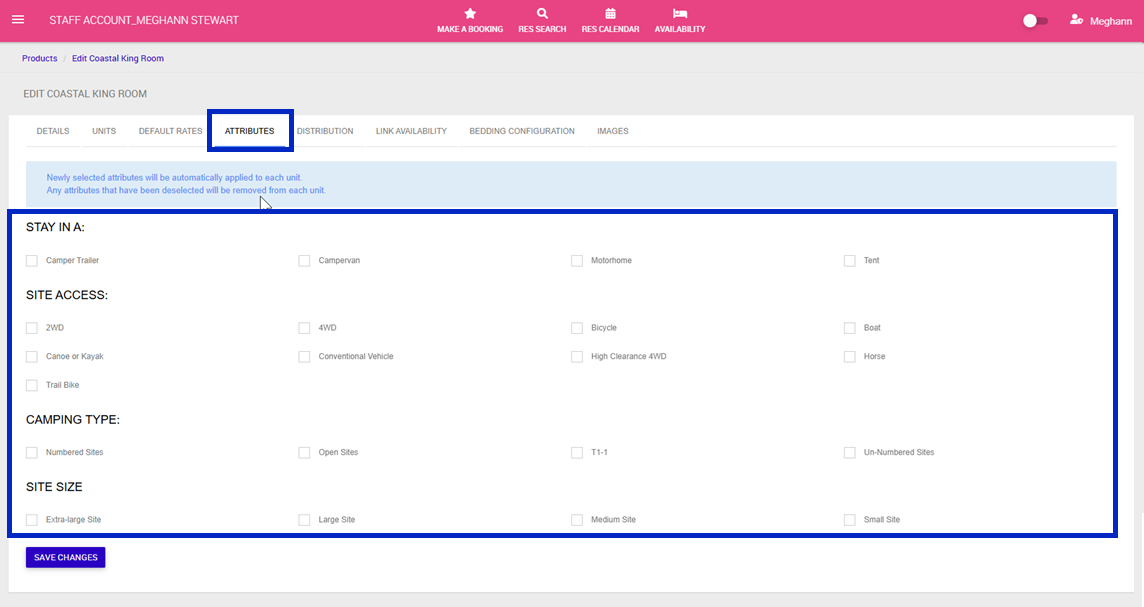
7. Click the Attributes tab and complete the following fields:
- Select the attributes of your room (If any are applicable)
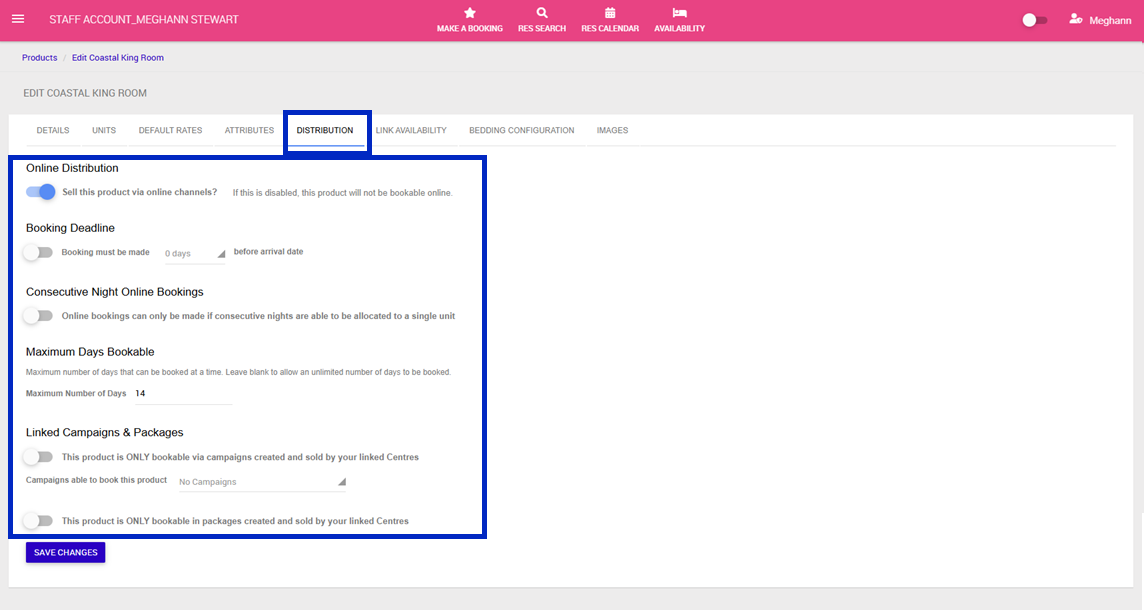
8.Click the Distribution tab and complete the following fields:
- Online Distribution: Toggle this to 'Yes' once your room is fully set up with rates, descriptions, and images to make it available for online booking through your booking engine
- Booking Deadline: If you cannot accommodate reservations right up until check-in you will need to enter how many days you are happy to accept a booking prior to arrival
- Consecutive Night Online Bookings: If you can accommodate consecutive bookings in the same unit, toggle this.
- Maximum Days Bookable: Maximum number of days that can be booked at a time.
- Linked Campaigns & Packages: Not applicable to this product, please disregard.
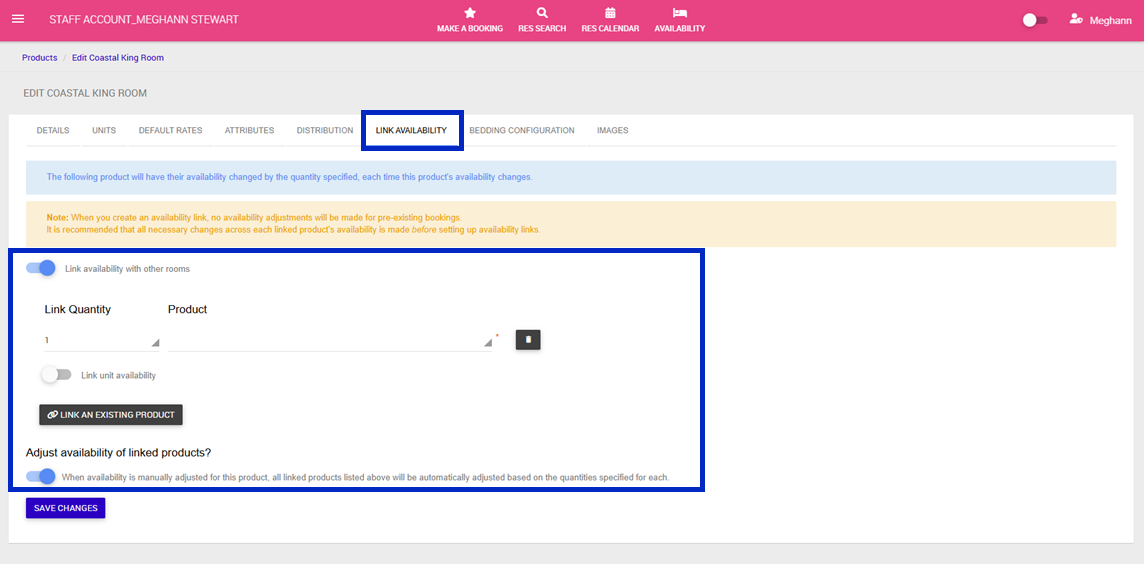
9. Click the Link Availability tab to link a rooms availability to another room. I.e- Interconnecting rooms
- Toggle on, Link availability with other rooms
- Add quantity and select product from the drop down
- To adjust availability automatically toggle on, When availability is manually adjusted for this product, all linked products listed above will be automatically adjusted based on the quantities specified for each.
10. Click the Bedding Configuration tab to add bedding configuration options for the room type
11. Click Add a New Bedding Configuration
12. Enter number of beds > Bed type > Bedding Description > Additional Cost (if applicable) > Per Night fee (if applicable) > Select default bedding configuration
13. Repeat the above until all bedding configurations are loaded.
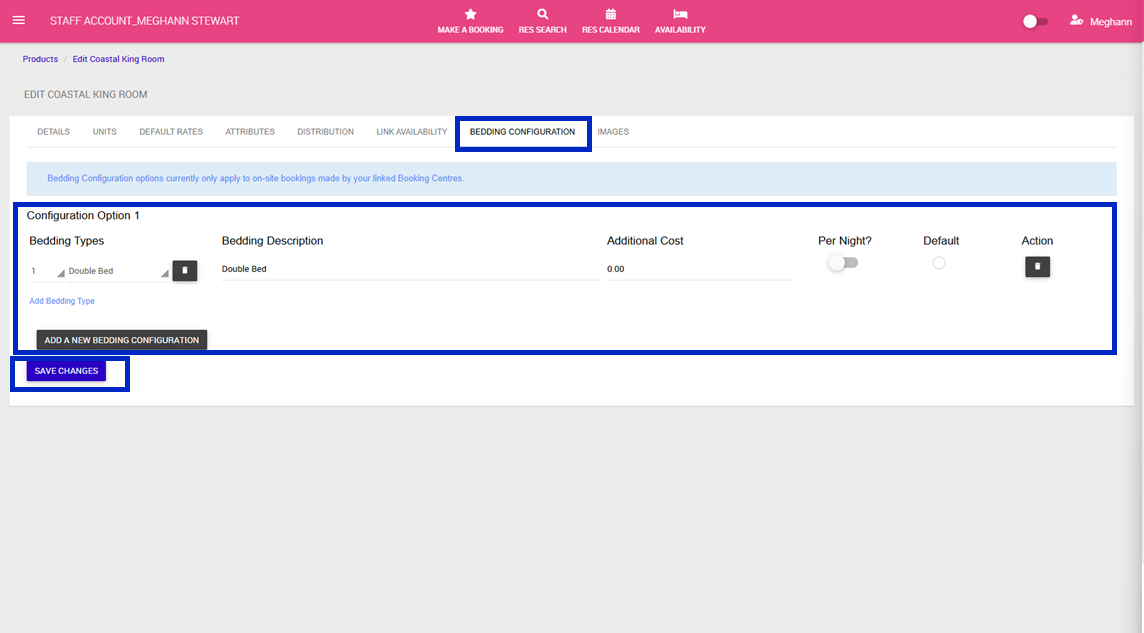
14. If you have not yet clicked 'Save Changes' to create your room, you will need to do so before adding your Images. Once saved, click your Room Name
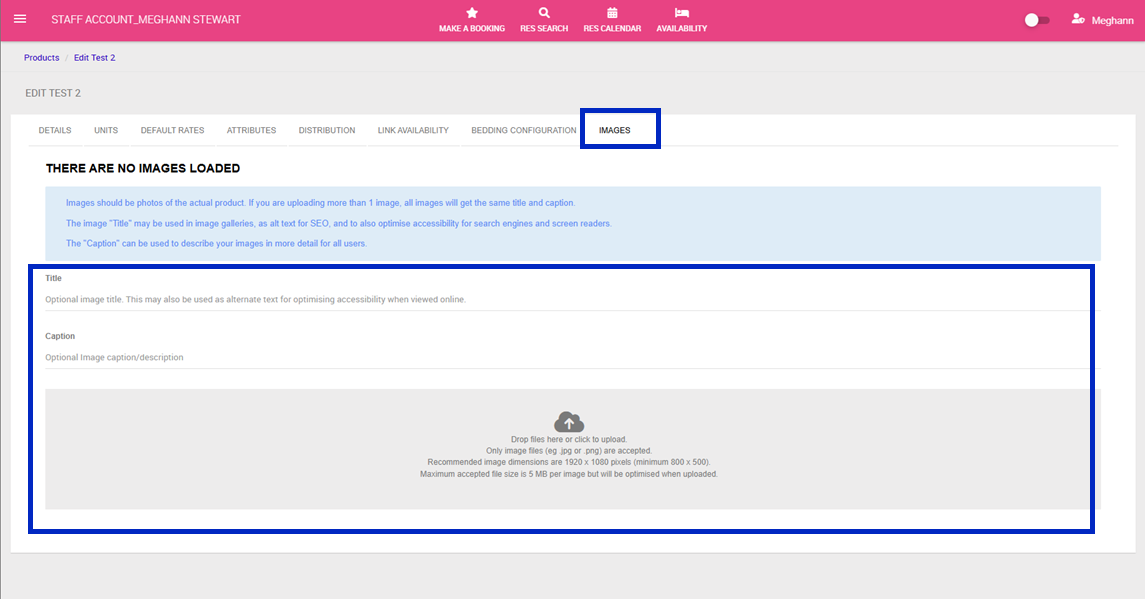
15. Click the Images tab and complete the following fields:
- Title: The image "Title" may be used in image galleries, as alt text for SEO, and to also optimise accessibility for search engines and screen readers.
- Caption: The "Caption" can be used to describe your images in more detail for all users.
16. Click the 'Drop files here' or click to upload images. Images are recommended to be 1920 x 1080 and landscape
17. Once images are loaded, click the pencil icon to edit the individual caption for the image.